
Landlord – Property Management Made Simple
Welcome to Landlord! Your all-in-one Property Management System for landlords and property managers. Manage properties, tenants, listings, bookings, invoices, payments, and maintenance from a single platform. With comprehensive reporting, and tenant and admin portals, Landlord keeps your portfolio organized and your tenants satisfied.
Whether you manage residential, commercial, or mixed-use properties, Landlord streamlines listings, booking requests, lease agreements, rent collection, and maintenance workflows. Tenants can browse listings, submit booking requests, sign agreements, pay rent, and open support or maintenance tickets — all in one place.
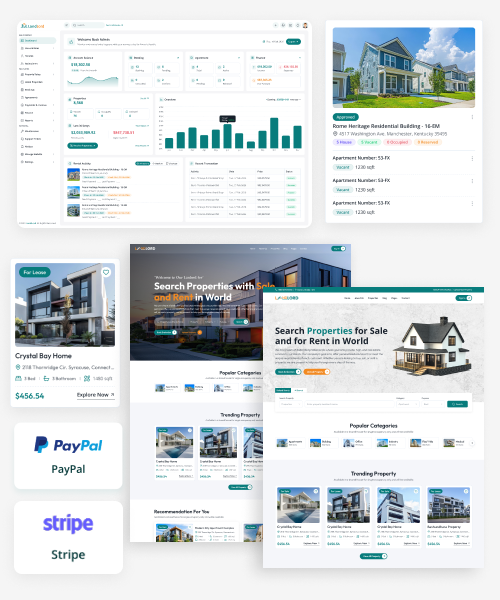
Core concepts
A Property Management System organizes properties, tenants, listings, and finances in one place. Landlord connects the admin dashboard, tenant portal, and public frontend so tenants can find and rent properties while you manage listings, agreements, and payments.
The system is built around these key concepts:
- Property: A building or land record. It has address (country, state, city), category, spaces, images, documents, amenities, and facilities.
- Property Space: A unit within a property (e.g., apartment, room, office). Linked to a space type, with custom details, documents, amenities, pricing, and images.
- Listing: A rent or purchase listing on a property space. Has one or more pricing options (e.g., monthly rent, purchase price) and availability.
- Tenant: A user who can submit bookings, sign agreements, pay invoices, and use the tenant portal (maintenance requests, support tickets, notices, wishlist).
- Booking: A rent or lease request on a listing. Flow: pending → approved or rejected → confirmed. One booking can lead to an agreement.
- Agreement: A lease agreement linked to a booking. Tracks status (e.g., active, signed, waiting) and is tied to invoices and payments.
- Invoice: A bill (rent, security deposit, down payment, etc.) linked to an agreement. Tenants pay via configured payment gateways.
- Maintenance: A request for property repairs or improvements. Tracks status (e.g., open, in progress, completed) and is linked to invoices and payments.
- Dynamic Agreement Templates: Customizable agreement templates for different types of agreements (rent, lease, sale).
How property management works (flow explained)
Landlord follows a clear flow: tenants discover listings, submit booking requests, get approved, sign agreements, and pay invoices. Maintenance and support run alongside. Here is the journey step by step:
1. Tenant browses listings (public frontend)
Tenants visit the public site and browse or search properties and listings. They can filter by location, price, and other criteria, then open a listing to see details, pricing, and availability.
2. Tenant submits a booking request
For rent, lease, or sale, the tenant submits a booking request (with dates and any required info). The booking is created with status pending and appears in the admin panel.
3. Admin approves or rejects the booking
From the Admin Dashboard, staff review bookings, use the calendar view, and approve or reject requests. On approval, the booking moves to confirmed and an agreement can be created.
4. Agreement is created and signed
An agreement (lease) is linked to the booking. The tenant can sign electronically or admin can record a manual sign-off. Agreement status (e.g., active, signed) is tracked for reporting.
5. Invoices are generated; tenant pays
Invoices (rent, security deposit, down payment, etc.) are generated from the agreement. Tenants pay through the tenant portal using configured payment gateways. Payments are recorded and can be verified or refunded from the admin.
6. Maintenance and support as needed
Tenants can submit maintenance requests and support tickets from the tenant portal. Admin assigns maintenance work to maintainers, and both maintenance and support conversations are tracked in the system. Notices can be sent to tenants from the admin panel.
What to monitor
Use reports and the dashboard to track:
- Occupancy and bookings — Pipeline and conversion
- Revenue and payments — Invoices, payments, outstanding balances
- Maintenance — Open work orders and completion
- Agreements — Active leases and renewals
Access & login
After installation, use the seeded admin users to
sign in and explore the system. Go to your
application URL and log in to the admin panel (e.g.
/admin/login) or tenant portal (e.g.
/tenant/login).
- Admin panel: For staff and property managers at /admin. Manage properties, tenants, bookings, agreements, invoices, maintenance, and settings.
- Tenant portal: For tenants at /tenant. Tenants register or log in to view bookings, agreements, payments, maintenance requests, and support tickets.
- Public frontend: Listings and CMS pages are at the site root. No login required to browse properties.
Demo login credentials
| No | Name | Password | Role | |
|---|---|---|---|---|
| 1 | Admin |
12345678
|
Admin | |
| 2 | Property Owner |
12345678
|
Property Owner | |
| 3 | Maintainer |
12345678
|
Maintainer | |
| 4 | Tenant |
12345678
|
Tenant |
Note
The system includes a robust permission system. You can create new roles with specific permissions on your own. Additionally, according to your company policy, you can customize accessibility with our support.
Warning
For security purposes, we highly recommend changing the passwords for these default users immediately after your first login. You can do this from the user management section within the Admin panel.
Roles & access
Landlord uses role-based permissions to control which menus, pages, and actions each user can access. Roles (e.g. Admin, HR Manager, Property Owner, Maintainer) are configurable; permissions can be assigned per role so that staff only see what they need.
- Admin: Full access to the admin panel — properties, tenants, bookings, agreements, invoices, maintenance, reports, users, roles, branches, and settings.
- HR Manager: Typically manages users and staff-related areas; exact permissions depend on role configuration.
- Property Owner / Maintainer: Role-specific access to relevant sections (e.g. maintainers get maintenance work orders).
Configure roles and permissions under Users & roles in the admin panel. Change default user passwords after first login.
Server Requirements
Ensure your server meets the following requirements before proceeding with the installation.
Minimum Server Requirements
-
PHP
>= 8.2 (8.3+ preferred) -
MySQL
>= 8.0or MariaDB>= 10.10 -
Apache
>= 2.4or Nginx>= 1.15 (Recommended: 1.20+ (LTS)) -
Memory Limit
>= 1 GB (Recommended: 2 GB+) -
Max Execution Time
>= 300seconds -
Disk Space
>= 10 GB (Recommended: 20 GB+)
Required PHP Extensions
- OpenSSL PHP Extension
- PDO PHP Extension
- Mbstring PHP Extension
- Tokenizer PHP Extension
- cURL Extension
- JSON Extension
- XML PHP Extension
- BCMath PHP Extension
- Ctype PHP Extension
- Fileinfo PHP Extension
- DOM PHP Extension
- GD PHP Extension (or Imagick)
- ZIP PHP Extension
- Exif PHP Extension
- mysqli PHP Extension
- pdo_mysql (for MySQL/MariaDB)
Required PHP Settings
allow_url_fopen = On
file_uploads = On
max_file_uploads = 20
upload_max_filesize = 32M
post_max_size = 32M
max_input_vars = 3000
max_execution_time = 300
memory_limit = 200M
Database Requirements
- MySQL 8+ or MariaDB 10.10+
- InnoDB storage engine support
- UTF8MB4 character set support
- Database user with full privileges
Web Server Configuration
- URL Rewrite Module enabled
- HTTPS support (recommended)
- Gzip compression enabled (recommended)
- Security headers configured (recommended)
File Permissions
Please ensure the following file and folder permissions are set correctly for the application to function properly. Incorrect permissions may cause installation or runtime errors.
Required Writable Permissions
(777)
/lang— Language files
Required Writable Permissions
(775) [If you face permission errors try
                                    777]
-
/storage— Application logs, cache, and temporary files -
/storage/app— Application file storage -
/storage/framework— Framework cache and session files -
/storage/logs— Application log files -
/bootstrap/cache— Bootstrap cache files /vendor— Vendor files
Required File Permissions
(664) [If you face permission errors try
                                    666]
-
.env— Environment configuration file -
modules_statuses.json— Modules configuration file
Common Issues and Solutions
If you see this error after copying and extracting the files on your server (common on VPS), you may need to manually set the permissions first. On a Linux VPS, run the following commands in the project directory terminal:
Command
sudo chmod -R 777 bootstrap/cache
sudo chmod -R 777 storage
sudo chmod -R 777 lang
sudo chmod -R 777 vendor
sudo chmod -R 666 modules_statuses.json
sudo chmod -R 666 .env
Create Database
Before installing Landlord, you need to create a MySQL database and user. This section provides comprehensive instructions for different methods.
Creating DB in cPanel
Step 1: Create Database
- Login to your cPanel dashboard
- Navigate to Manage My Databases section
-
Under Create New Database, enter
database name (e.g.,
yourdb_your_db_name) - Click Create Database
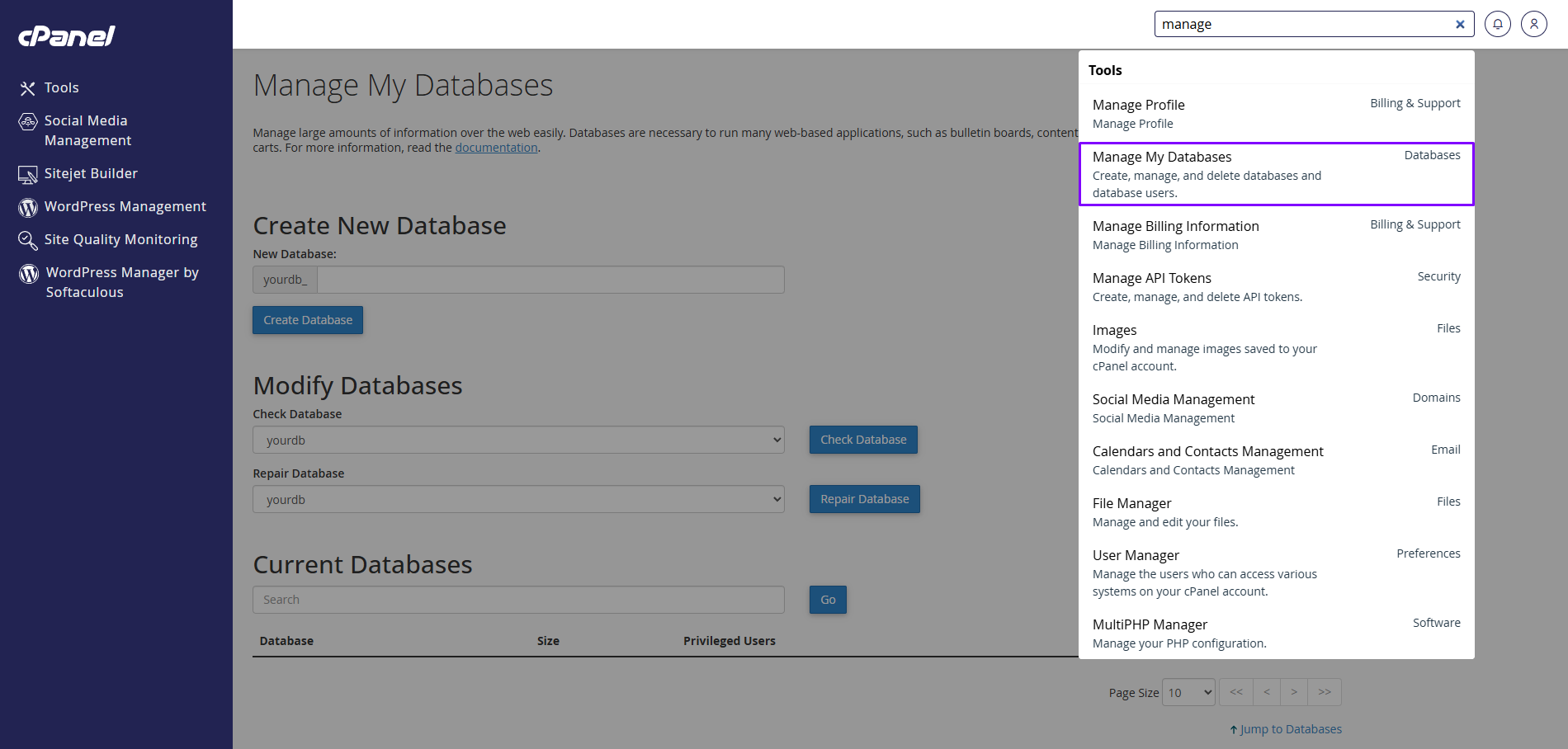
Goto the Manage My Databases from cPanel
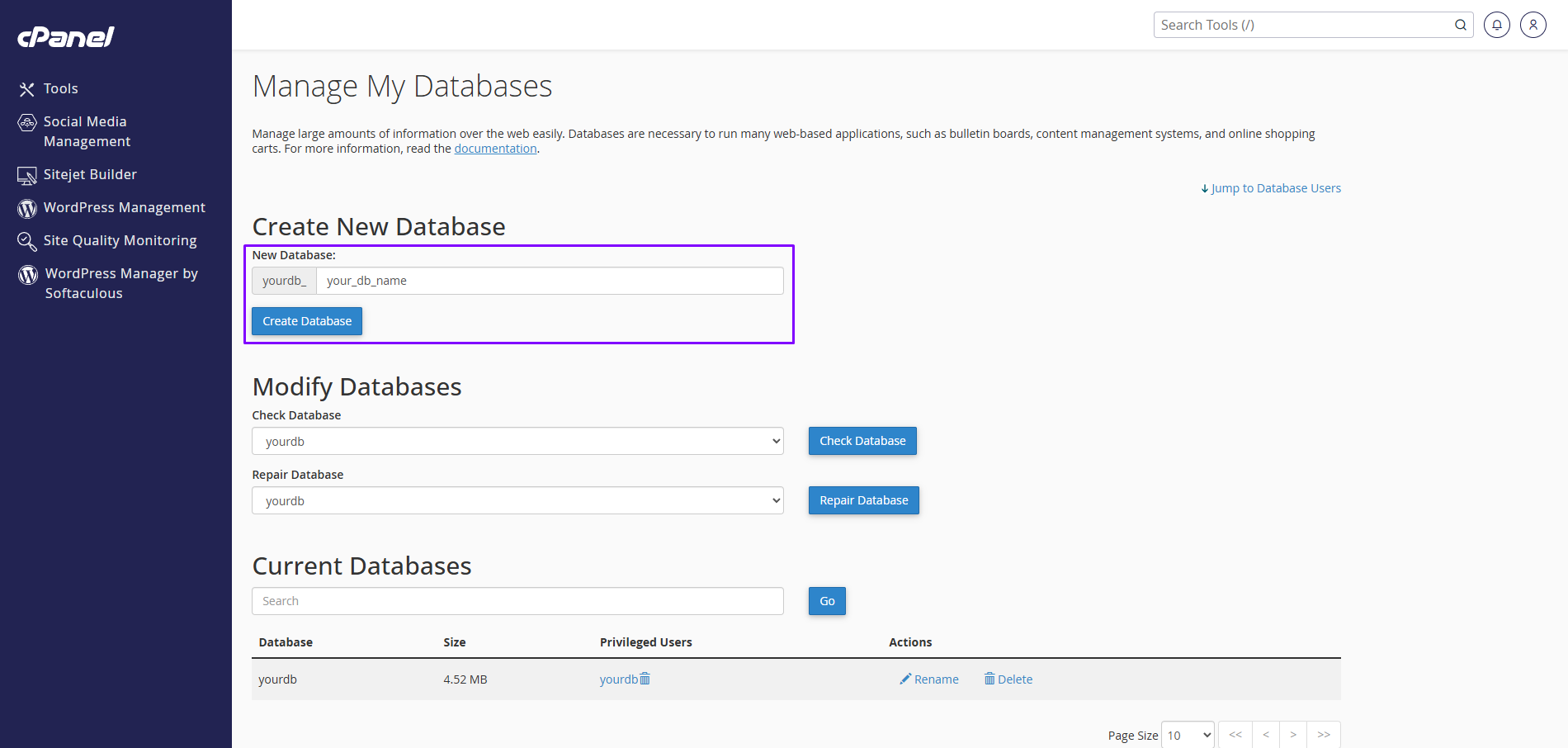
Create New Database
Step 2: Create Database User
- Scroll down to MySQL Users section
-
Enter username (e.g.,
yourdb_your_db_user_name) -
Enter a strong password (avoid
#character) - Click Create User
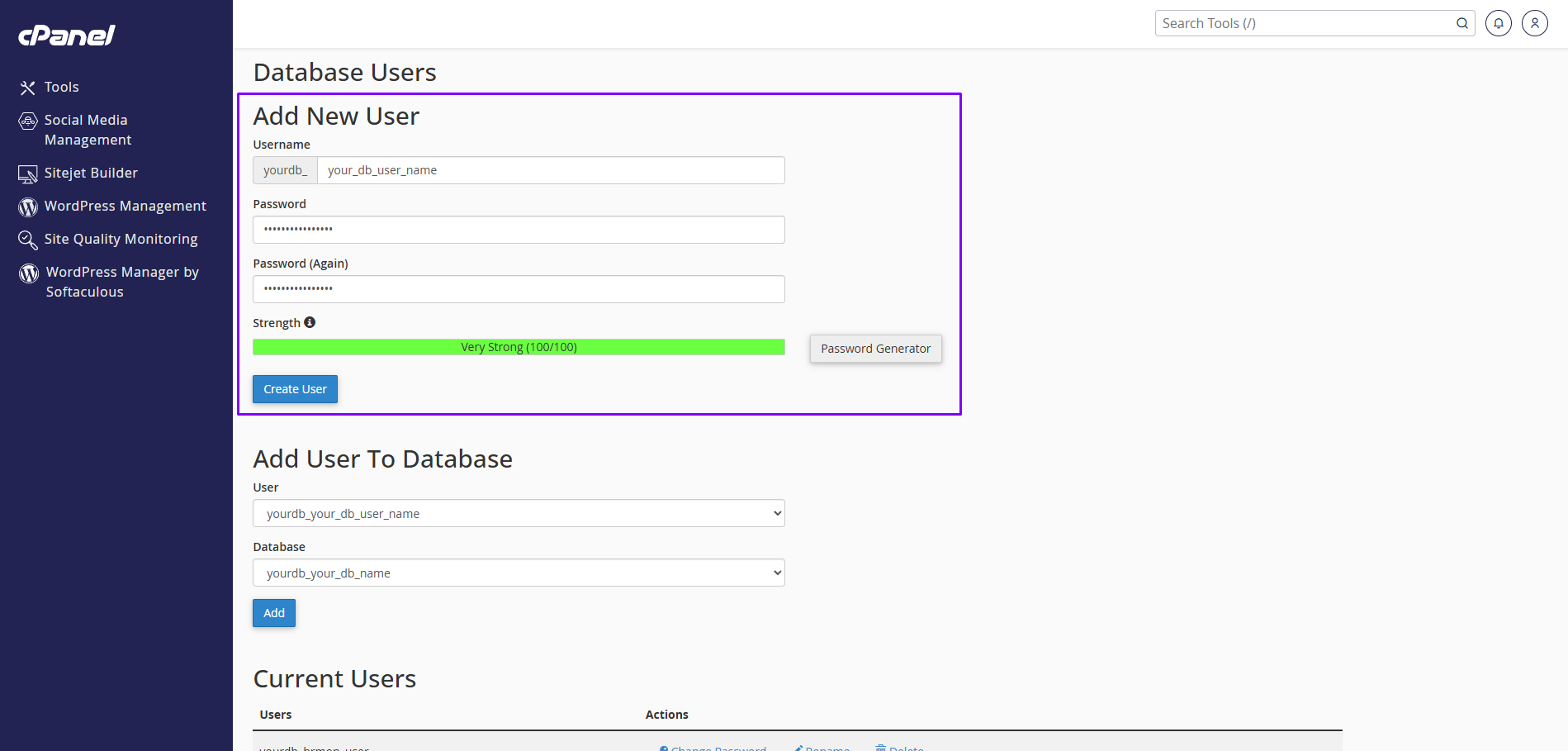
Add New User
Remember
Remember Database Name, User Name, and Password for future tasks
Important
Do not use a password that contains a
# (hash) character as it will
be treated as a comment in configuration
files.
Security Best Practices
- Use strong passwords with a mix of letters, numbers, and symbols
- Avoid common passwords or dictionary words
- Don't use the root MySQL user for application connections
- Regularly backup your database
- Keep your MySQL server updated
Step 3: Add User to Database
- In Add User to Database section
- Select the user you created
- Select the database you created
- Click Add
- Check ALL PRIVILEGES and click Make Changes
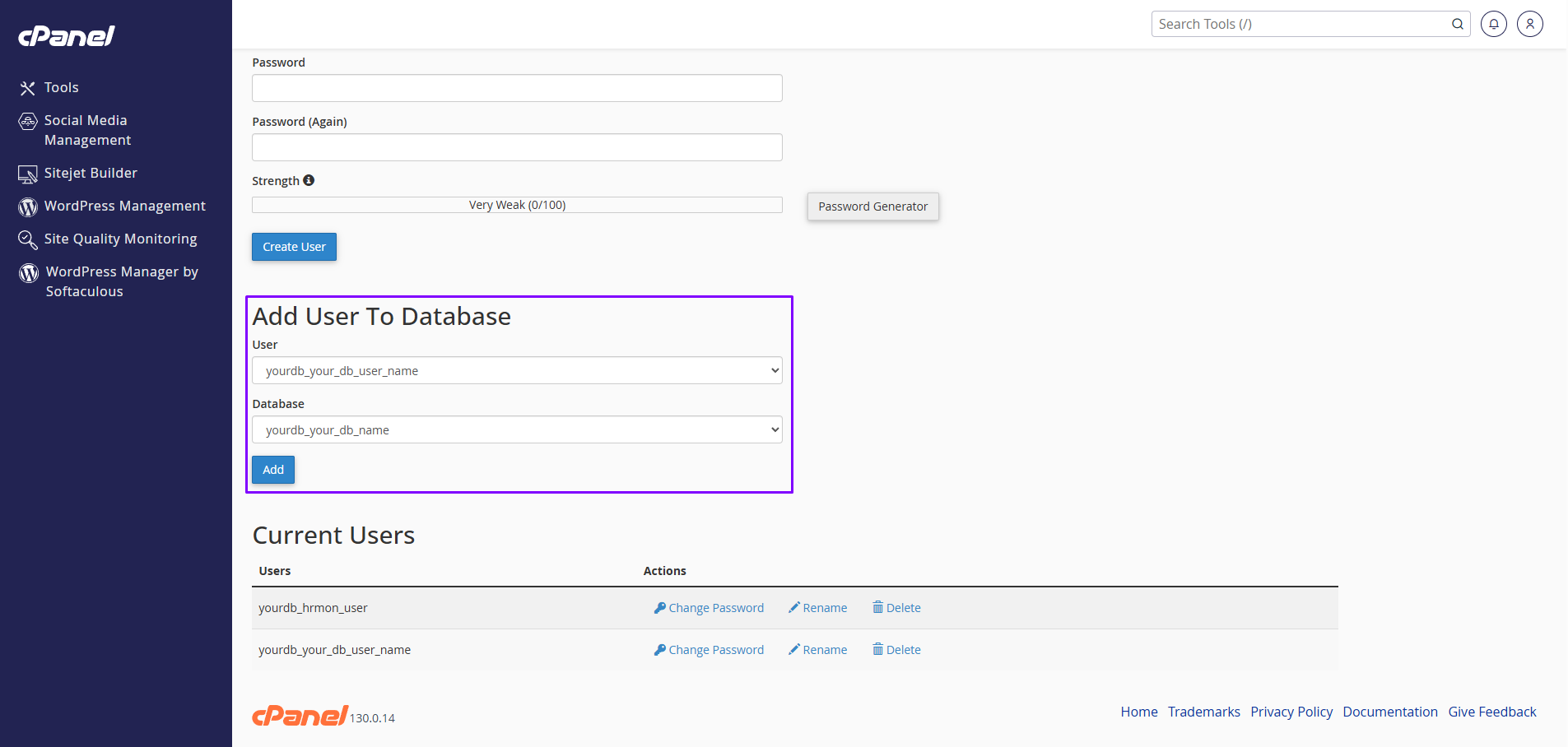
Add User To Database
Common Issues and Solutions
Universal / Other Servers
- Open phpMyAdmin from your hosting panel or localhost stack (XAMPP/WAMP/Laragon).
- Go to Databases → enter a name → click Create.
- Optionally create a dedicated user under Users and set a strong password.
- Grant ALL PRIVILEGES on the new database to that user.
-
Save these values and update
them in your
.envfile.
- Open the hosting control panel and go to MySQL Databases.
- Create a new database (note the exact name).
- Create a database user with a strong password.
- Assign the user to the database with ALL PRIVILEGES.
-
Update your
.envwith DB name, user, and password.
Connect via SSH and run the following in the MySQL shell:
CREATE DATABASE `yourdb` DEFAULT CHARACTER SET utf8mb4 COLLATE utf8mb4_unicode_ci;
CREATE USER 'youruser'@'%' IDENTIFIED BY 'strong_password';
GRANT ALL PRIVILEGES ON `yourdb`.* TO 'youruser'@'%';
FLUSH PRIVILEGES;
Note: Use
'localhost' instead
of '%' if
connecting locally only. Replace
names/passwords accordingly and
update your .env.
- Create a managed MySQL instance (engine version per requirements).
- Allow application server IP in inbound rules/security group.
- Create a database within the instance and a dedicated user.
-
Collect host, port, db name,
user, and password; update
.env. - Test connectivity with a MySQL client before running migrations.
Installation
Follow our user-friendly installation wizard to set up Landlord. The process is divided into 6 simple steps.
Prerequisites
Before starting, ensure you have created a MySQL Database and have the Database Name, Username, and Password ready.
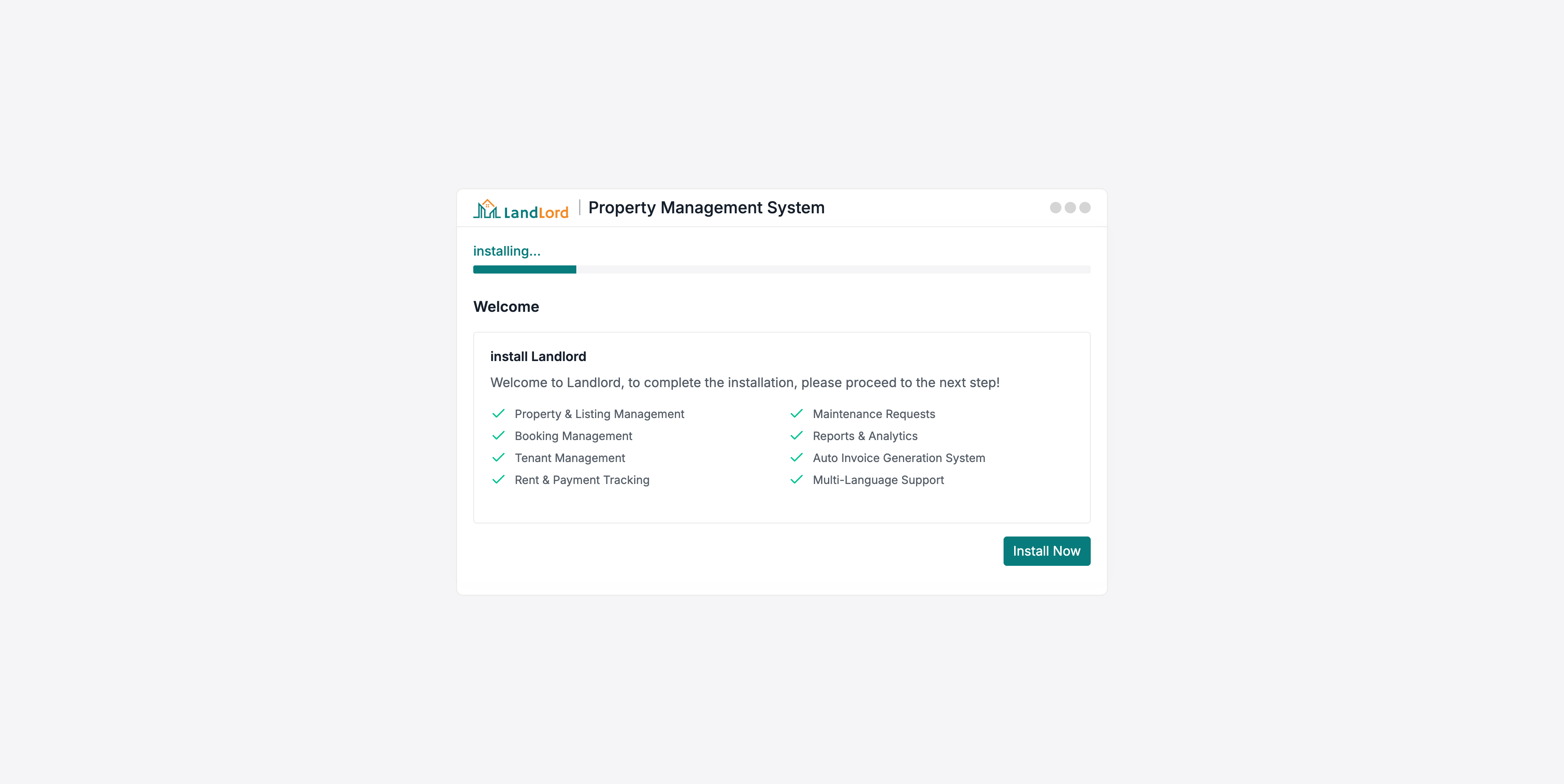
Step 1: Welcome Note
After extracting the files and opening your domain, you will see the welcome screen. Click Get Started to begin.
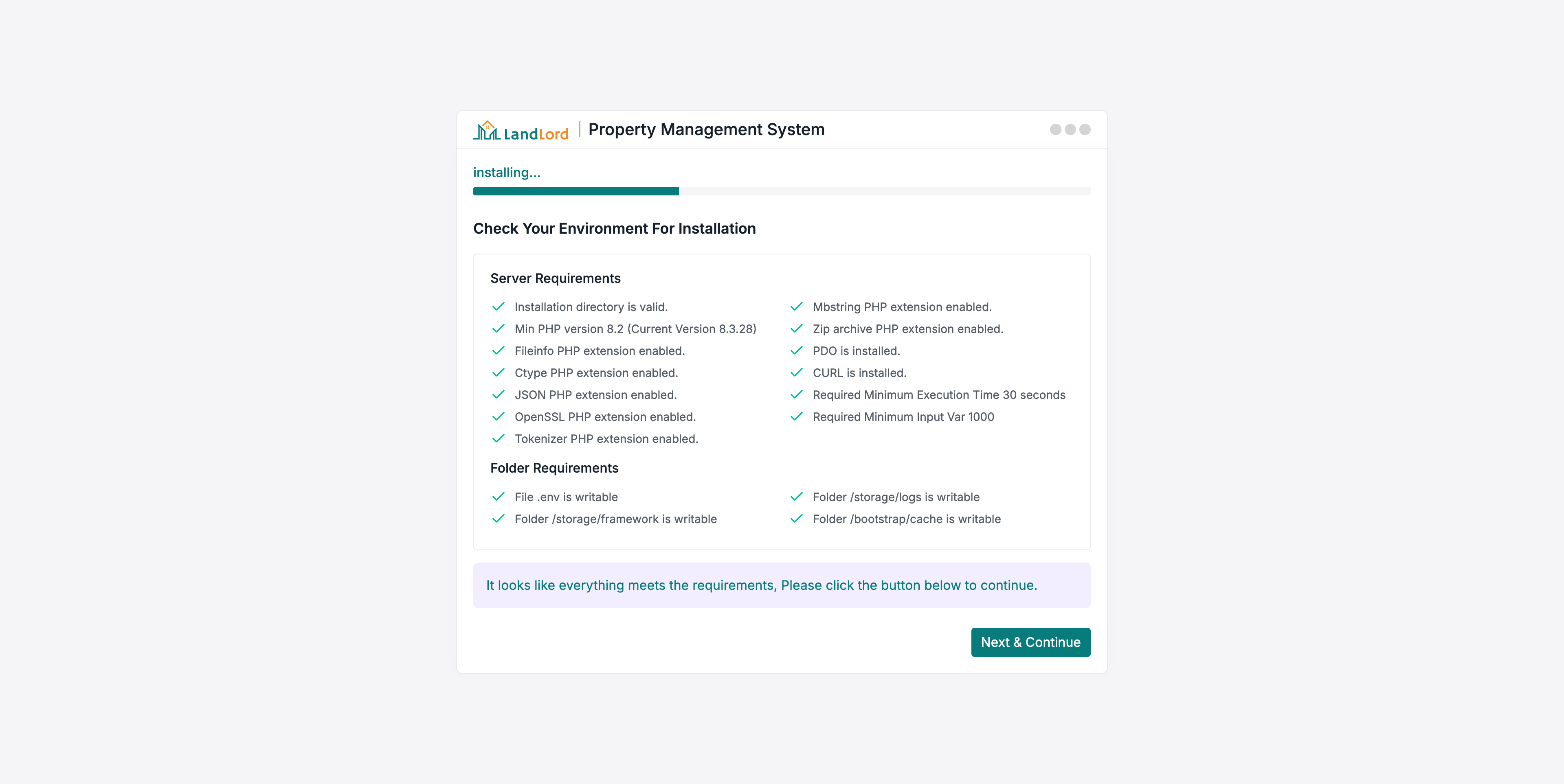
Step 2: Check Environment
The system automatically checks your server environment.
- Server Requirements: PHP version, extensions, and configurations.
- Folder Requirements: Write permissions for necessary directories.
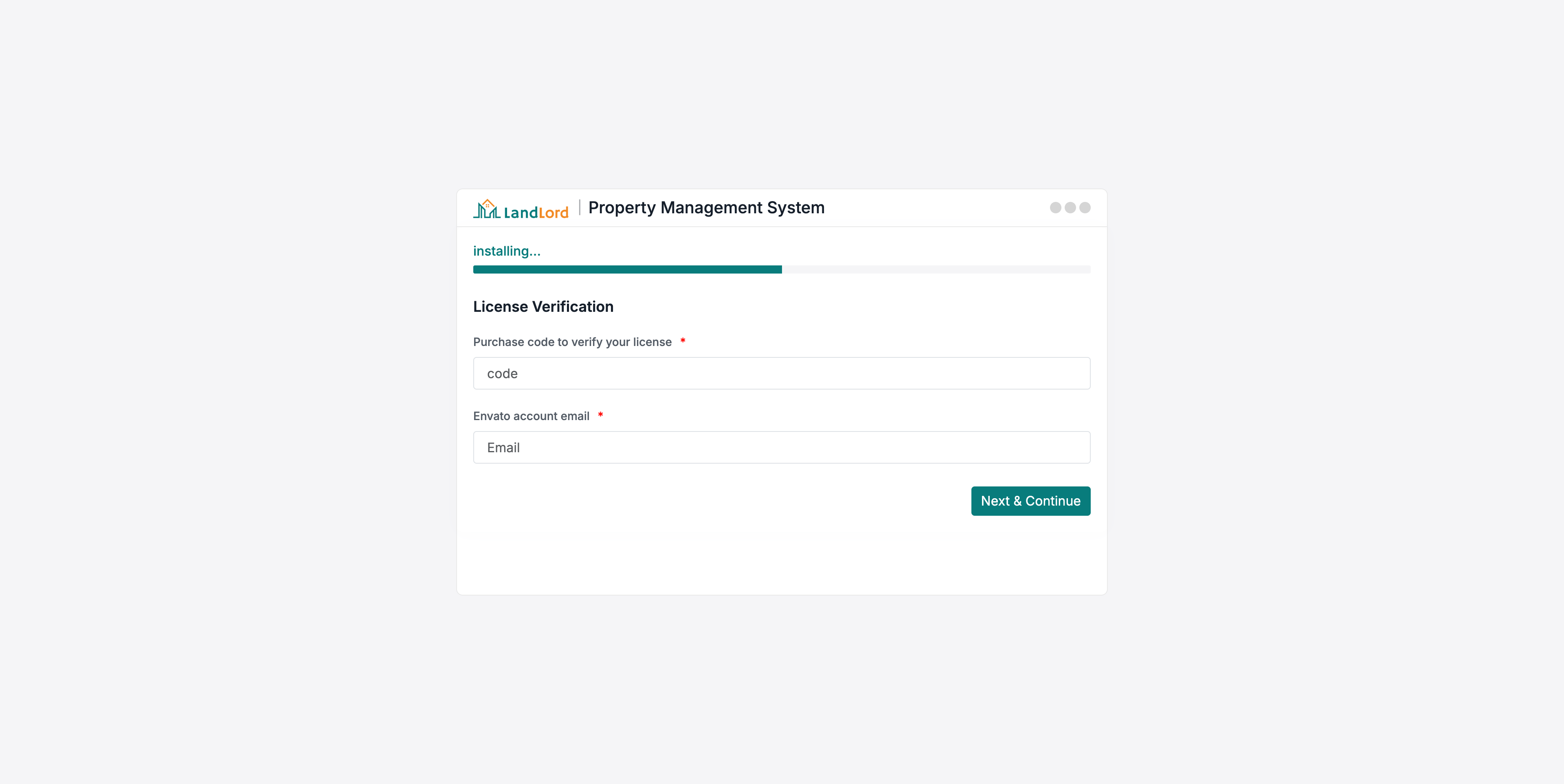
Step 3: License Verification
Enter your license key.
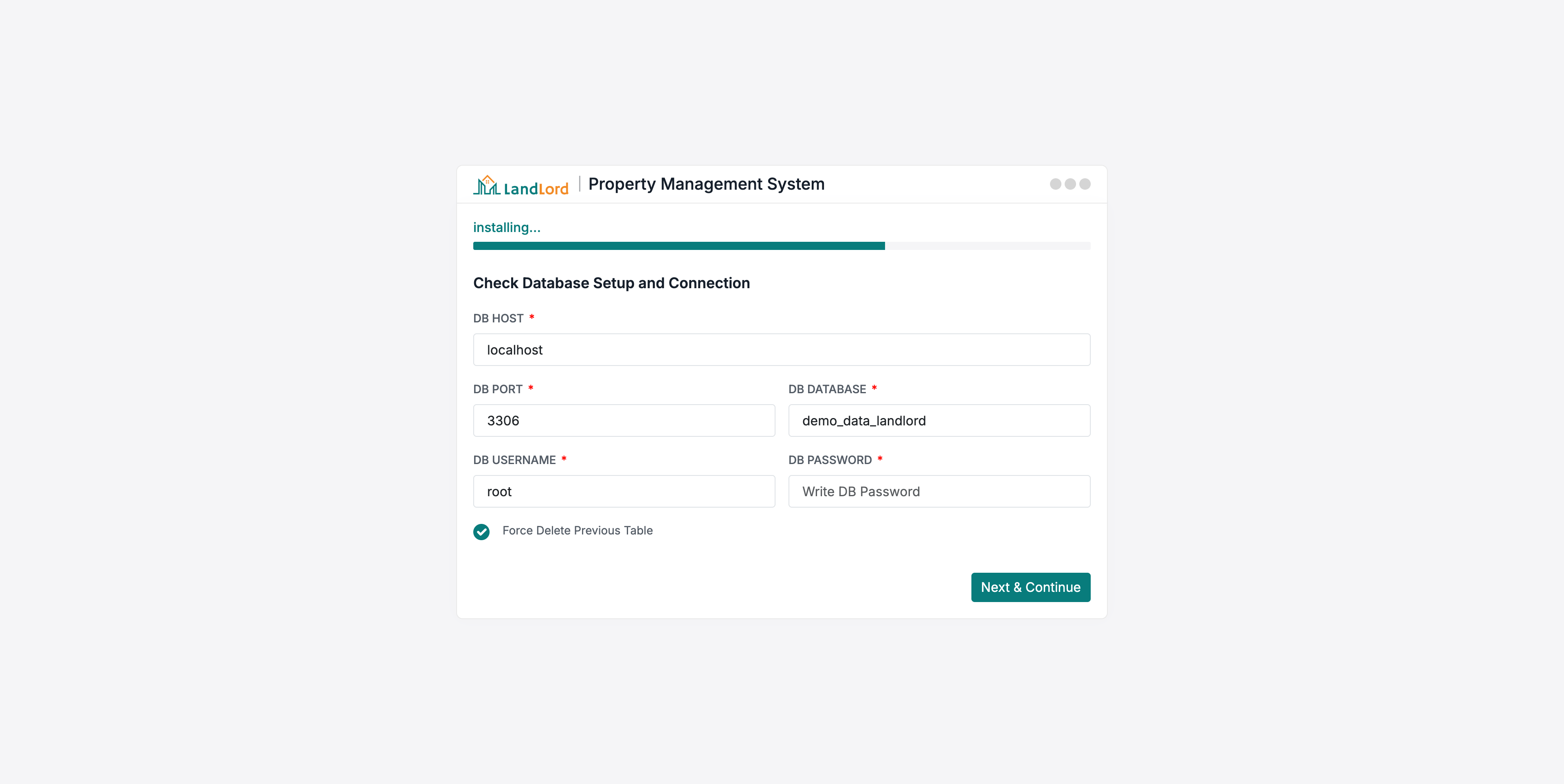
Step 4: Database Setup
Enter your database connection details.
-
DB Host: Usually
127.0.0.1orlocalhost. -
DB Port: Default is
3306. - DB Database: The name of the database you created.
- DB Username: The username for the database.
- DB Password: The password for the database user.
Force Delete Previous Table: Check this if you are reinstalling on an existing database and want to wipe old data.
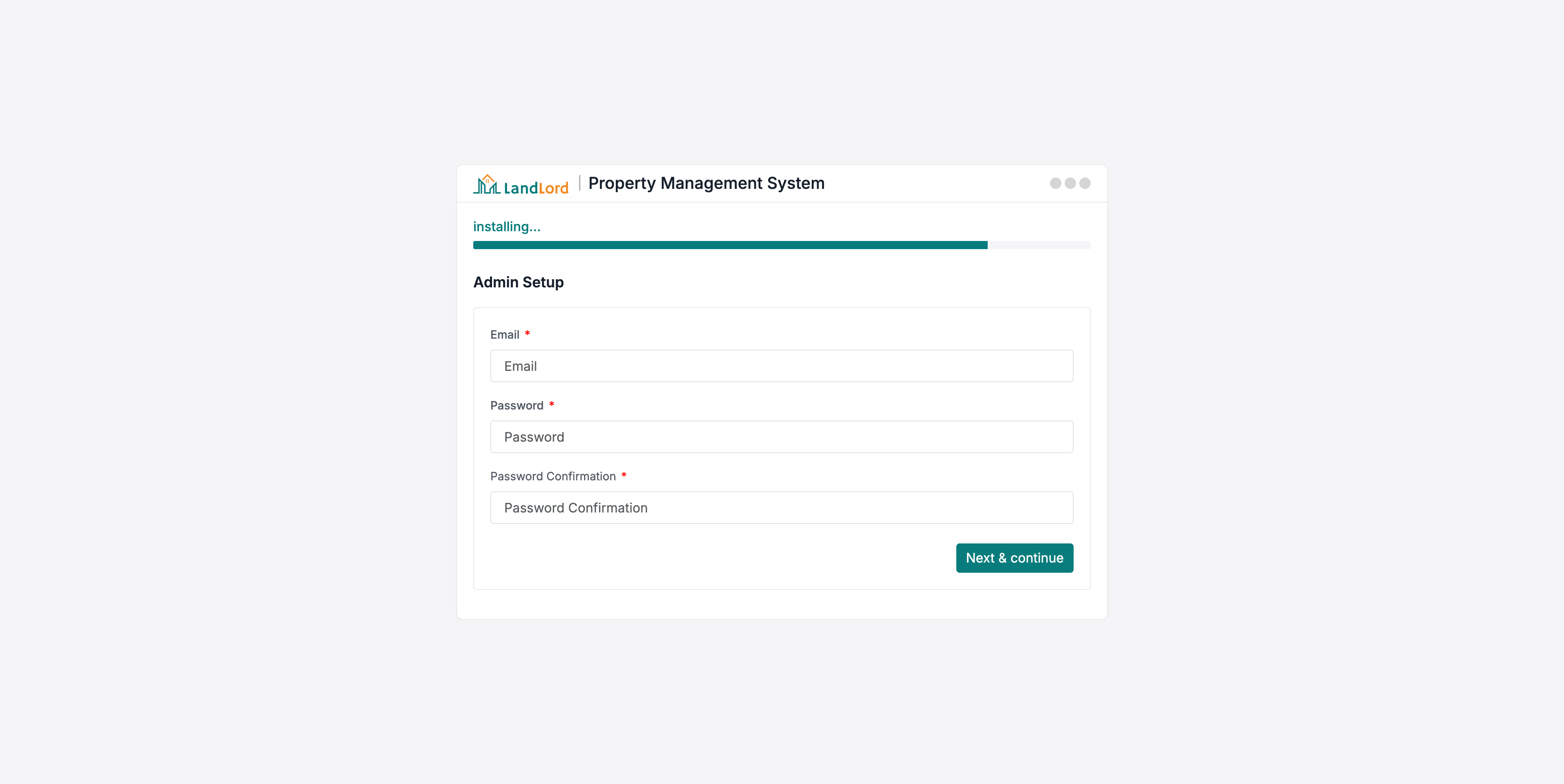
Step 4: Admin Setup
Enter your super-admin account details.
Step 5: Complete
Congratulations! The installation is complete.
You can now login with your admin credentials.
Run Background Jobs
Landlord uses Laravel's queue worker and scheduler for invoice-related tasks: recurring invoice generation (queued job), monthly invoice generation, and overdue invoice checks. Ensure the queue worker and scheduler cron are running in your environment.
Scheduled Tasks (routes/console.php)
The following commands are scheduled and run via the Laravel scheduler. The scheduler must run every minute (see Scheduler: Run Cron below).
| Command | Schedule | Description |
|---|---|---|
invoices:generate-monthly
|
1st of each month at 00:00 | Generates monthly invoices. |
invoices:generate-recurring
|
Daily at 02:00 |
Dispatches
GenerateRecurringInvoicesJob
to the queue to generate recurring
invoices for active agreements
(requires queue worker).
|
invoices:check-overdue
|
Daily at 09:00 | Checks and marks overdue invoices. |
All times use the application timezone
(config('app.timezone')). Tasks use
withoutOverlapping() to avoid
concurrent runs.
Queues: Start a Worker
The scheduled command
invoices:generate-recurring
dispatches
GenerateRecurringInvoicesJob to the
queue. A running queue worker is required for
recurring invoices to be generated. Use one of
the following options to run the queue worker
continuously.
Use one of the following options to run the queue worker continuously.
Option A — Terminal (Linux/macOS)
php artisan queue:workRecommended to run under a process manager (Supervisor/systemd) so it restarts automatically.
Supervisor (Linux)
# /etc/supervisor/conf.d/landlord-queue.conf
[program:landlord-queue]
process_name=%(program_name)s_%(process_num)02d
command=php /path/to/your/project/artisan queue:work
autostart=true
autorestart=true
user=www-data
numprocs=1
redirect_stderr=true
stdout_logfile=/var/log/supervisor/landlord-queue.log
sudo supervisorctl reread
sudo supervisorctl update
sudo supervisorctl start landlord-queue:*Option B — Windows (Task Scheduler)
- Open Task Scheduler → Create Task
- Action: Start a Program
- Program/script:
php -
Add arguments:
artisan queue:work -
Start in:
C:\\path\\to\\your\\project - Trigger: At startup or on logon; set to run whether user is logged on or not
Option C — Shared Hosting (cPanel)
Create a Cron Job with the following command (runs the worker in the background):
cd /home/USERNAME/public_html && php artisan queue:work > /dev/null 2>&1 &
Note: Replace
/home/USERNAME/public_html with
your project path.
Scheduler: Run Cron
Laravel's scheduler must run every minute so
that scheduled tasks (defined in
routes/console.php) run at the
correct times.
Linux Cron
* * * * * cd /path/to/your/project && php artisan schedule:run >> /dev/null 2>&1cPanel Cron
- cPanel → Cron Jobs → Add New Cron Job
-
Common Settings:
Every minute (
* * * * *) - Command:
cd /home/USERNAME/public_html && php artisan schedule:run >> /dev/null 2>&1Troubleshooting
-
Ensure
php artisan
                                                        queue:work
is running -
Check
QUEUE_CONNECTIONin.env(e.g.,database,redis) -
Review logs:
storage/logs/laravel.log - Verify Supervisor/Task Scheduler is active
- Confirm a system cron is running every minute
-
Run manually to test:
php artisan schedule:run - Check server time/timezone aligns with app config
-
invoices:generate-recurringonly dispatches the job;GenerateRecurringInvoicesJobruns on the queue. Ensurephp artisan queue:workis running. -
Check
storage/logs/laravel.logfor "Recurring invoices generation completed" or errors from the job.
Recommendation
Use Supervisor (Linux) or a reliable service manager so queue workers auto-restart and survive deploys. Always enable the scheduler cron every minute so monthly, recurring, and overdue invoice tasks run on time.
Getting started (admin)
- Add properties: Go to Properties and create properties (address, category, amenities, facilities). Add property spaces (units) and optionally listings.
- Create listings: Go to Listings (or create from a property space) and set pricing, availability, and listing type (rent/purchase).
- Configure users and roles: Go to Users & roles to add staff, assign roles, and set permissions.
- Optional: Configure payment gateways, agreement templates, and maintenance issue types in Settings.
Dashboard
The admin dashboard shows key totals (properties, tenants, bookings, agreements, revenue), financial summaries, and quick links to reports and common actions.
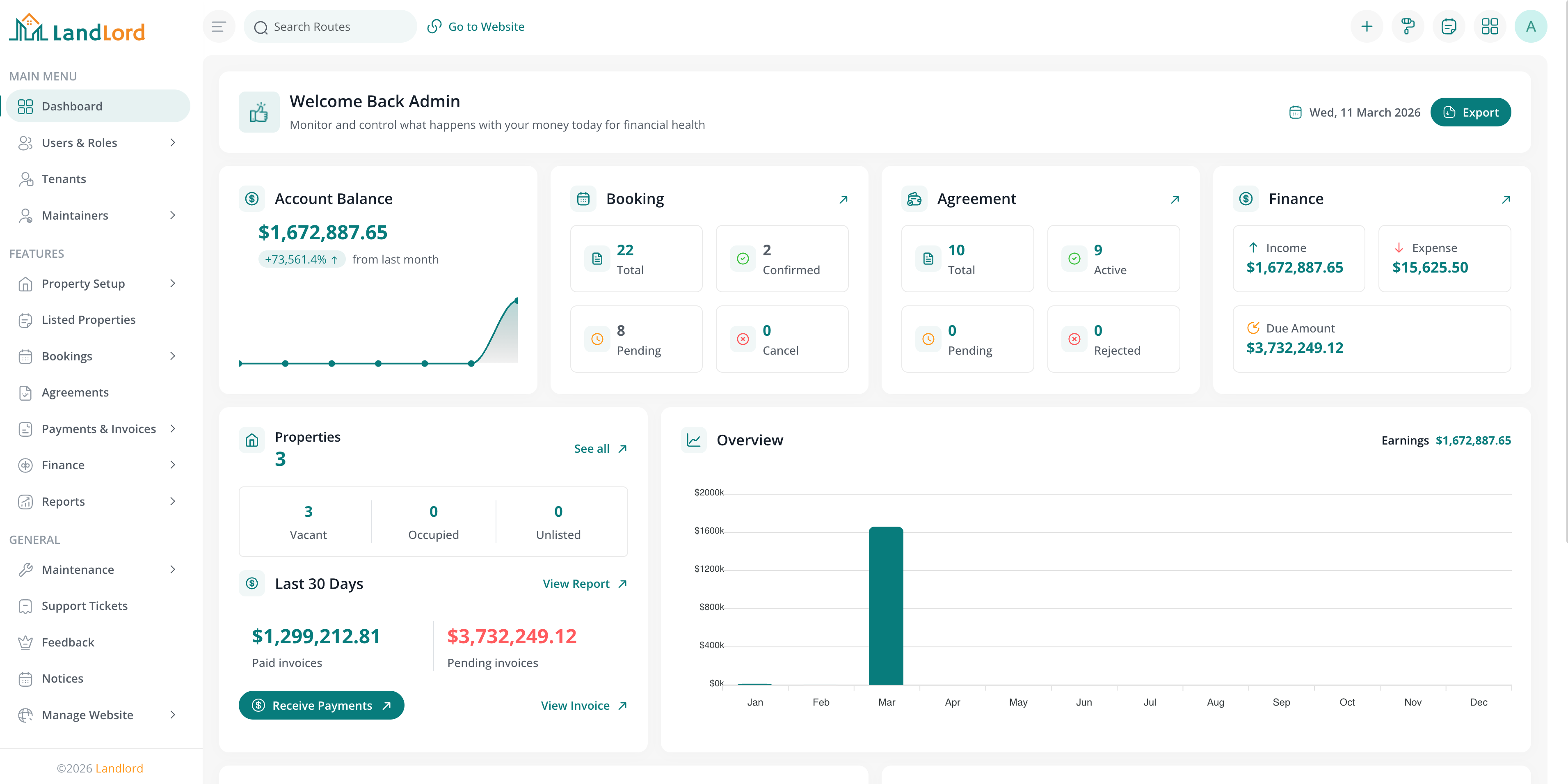
Dashboard navigation overview (main menu + submenus)
Quick create
Use Quick Create to jump directly into creating common entities (User Create, Tenant Create, Maintainer Create, Property Create, Booking Create, Invoice Create, Expense Create, Notice Create, etc.) from the header or menu.
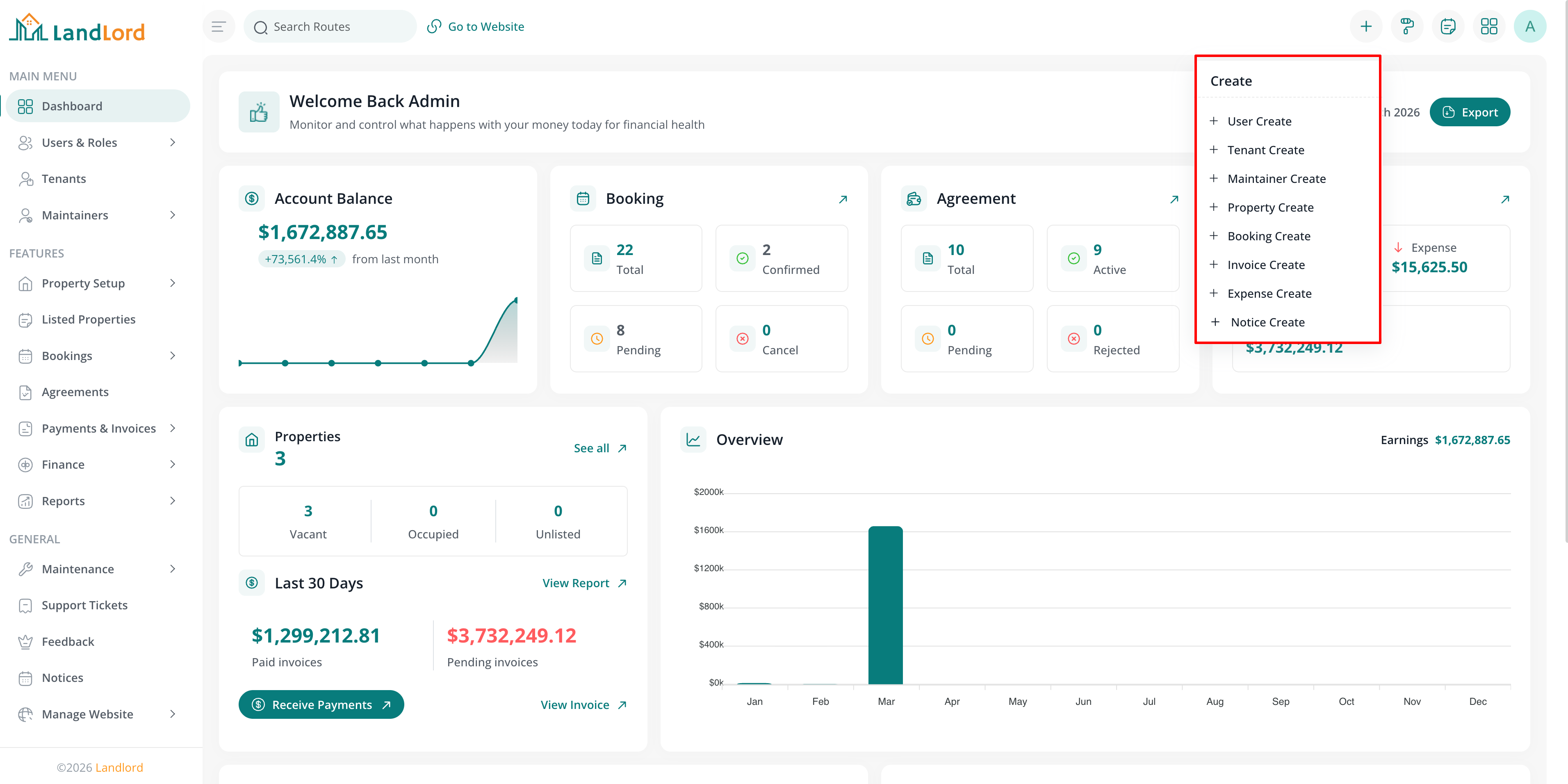
Quick Create modal (opened from the main menu icon bar).
Users & staff management
The Users & Staff management system provides comprehensive control over your organization's user accounts, roles, permissions. This centralized module allows you to manage who has access to the system and what they can do.
Navigate to Users & roles in the admin menu to access user and role management:
- Users: Create and manage admin/staff accounts
- Roles: Configure roles with specific permissions (e.g. Admin, HR Manager, Property Owner, Maintainer)
- Permissions: Assign granular permissions to roles and users
User Management
The User Management screen displays all staff members in your system. From here, you can create new staff accounts, edit existing users, assign roles, and manage their status. Each user can be assigned to specific roles.
Key features:
- Filter users by status, role
- View user details including email, phone, and role
- Create new staff with customizable fields
- Assign users to roles for access control
- Manage user permissions individually or through roles
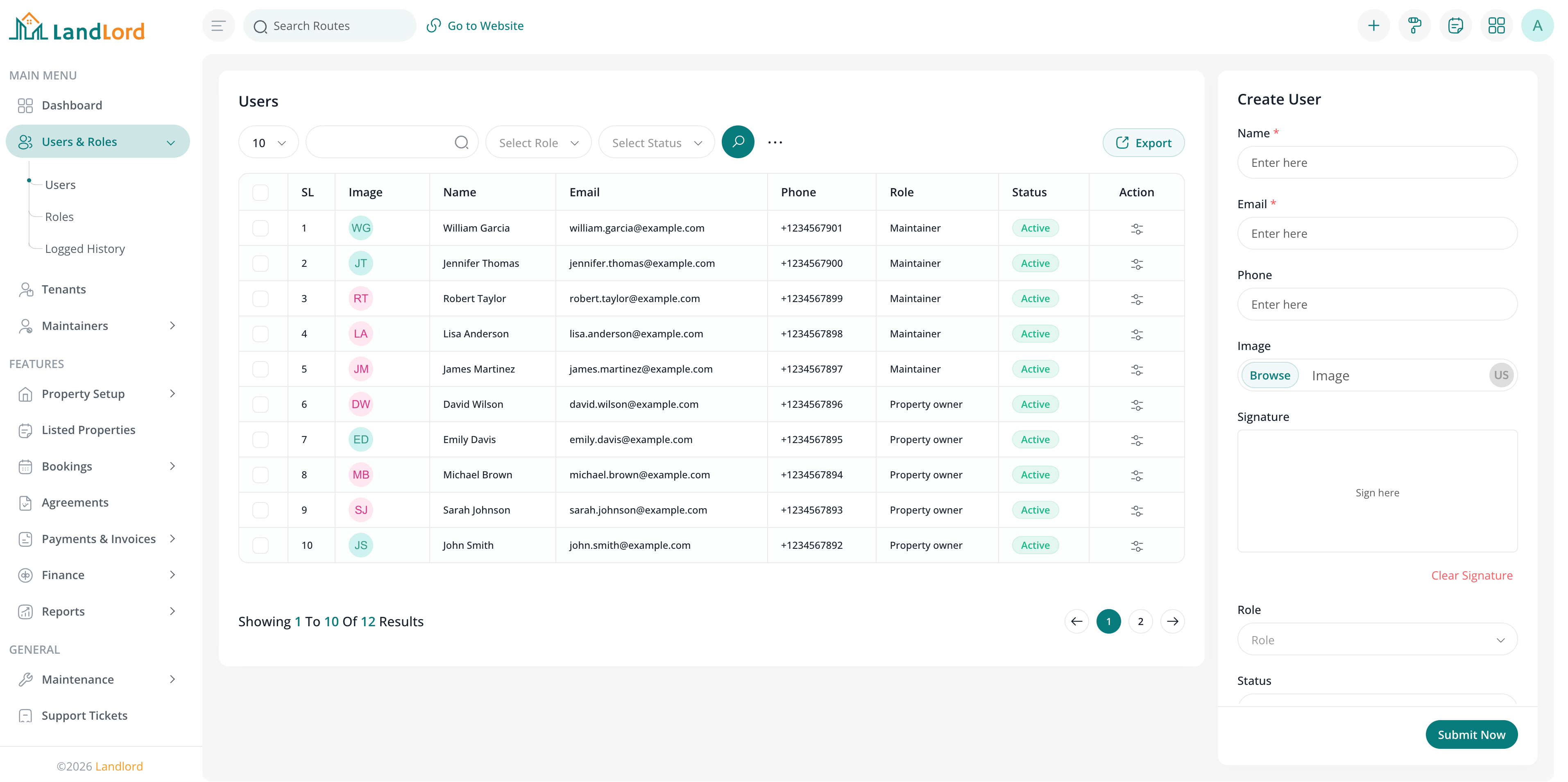
User management screen showing staff list with filters and create options.
Role & Permission Management
Landlord includes a powerful role-based access control (RBAC) system. Roles define what actions users can perform in the system. Each role can have multiple permissions assigned, controlling access to specific features and operations.
Role management workflow:
- Create a new role (e.g., "Admin", "HR Manager", "Property Owner", "Maintainer")
- Assign permissions to the role from the available permission list
- Assign the role to users who need those permissions
- Optionally assign additional permissions directly to specific users
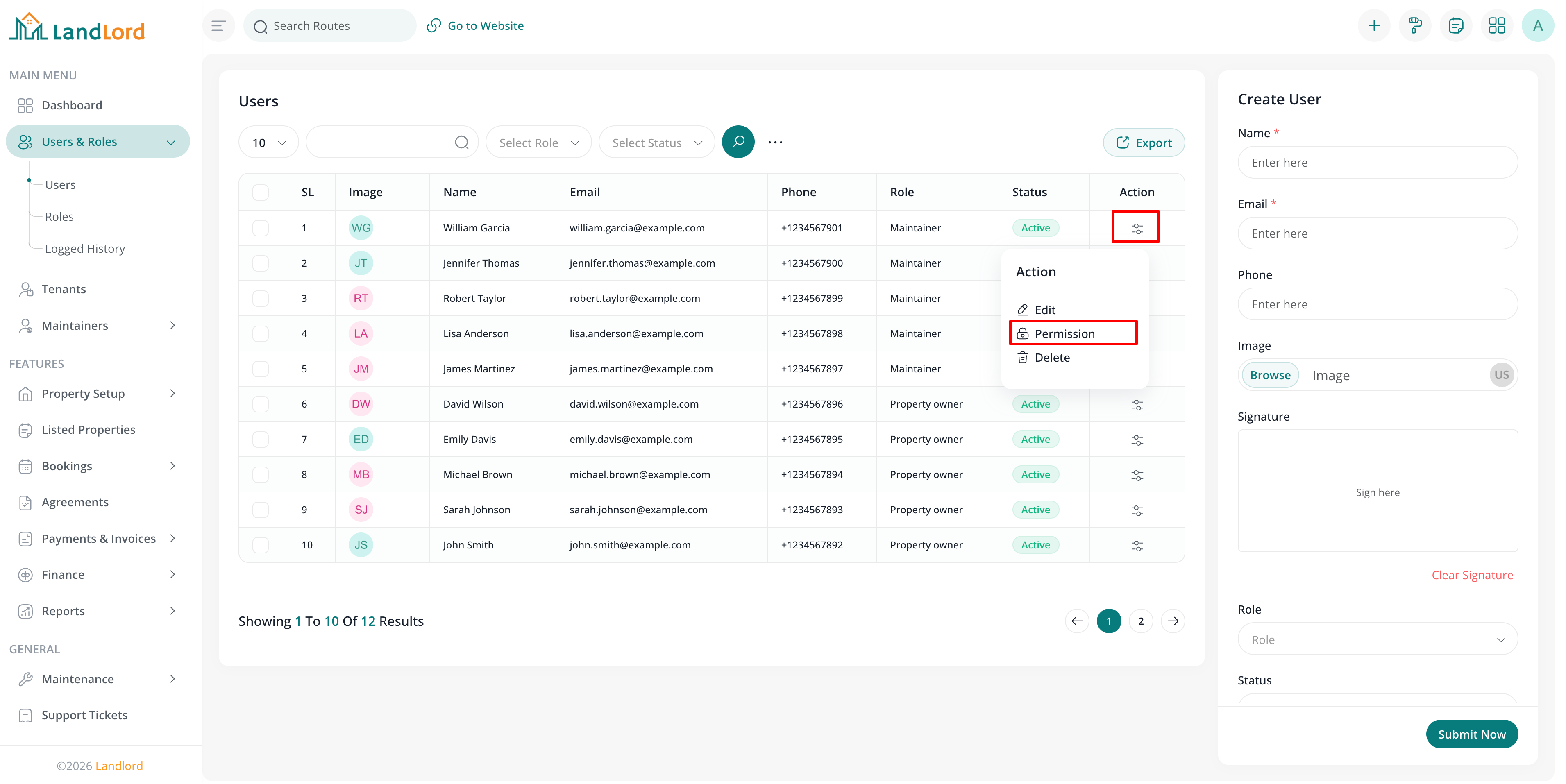
Permission management interface showing available system permissions.
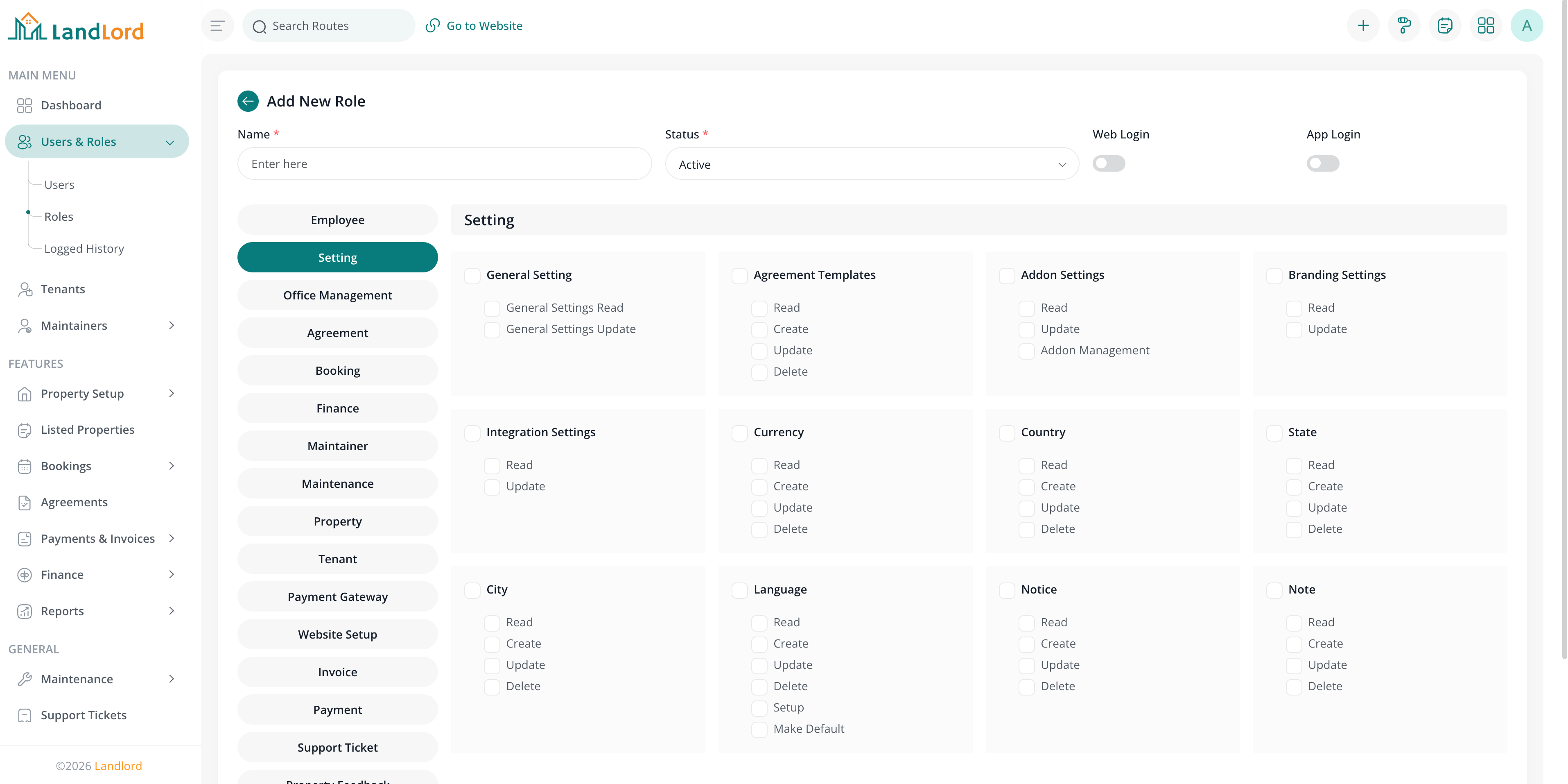
Assigning permissions to a role - select which modules and actions the role can access.
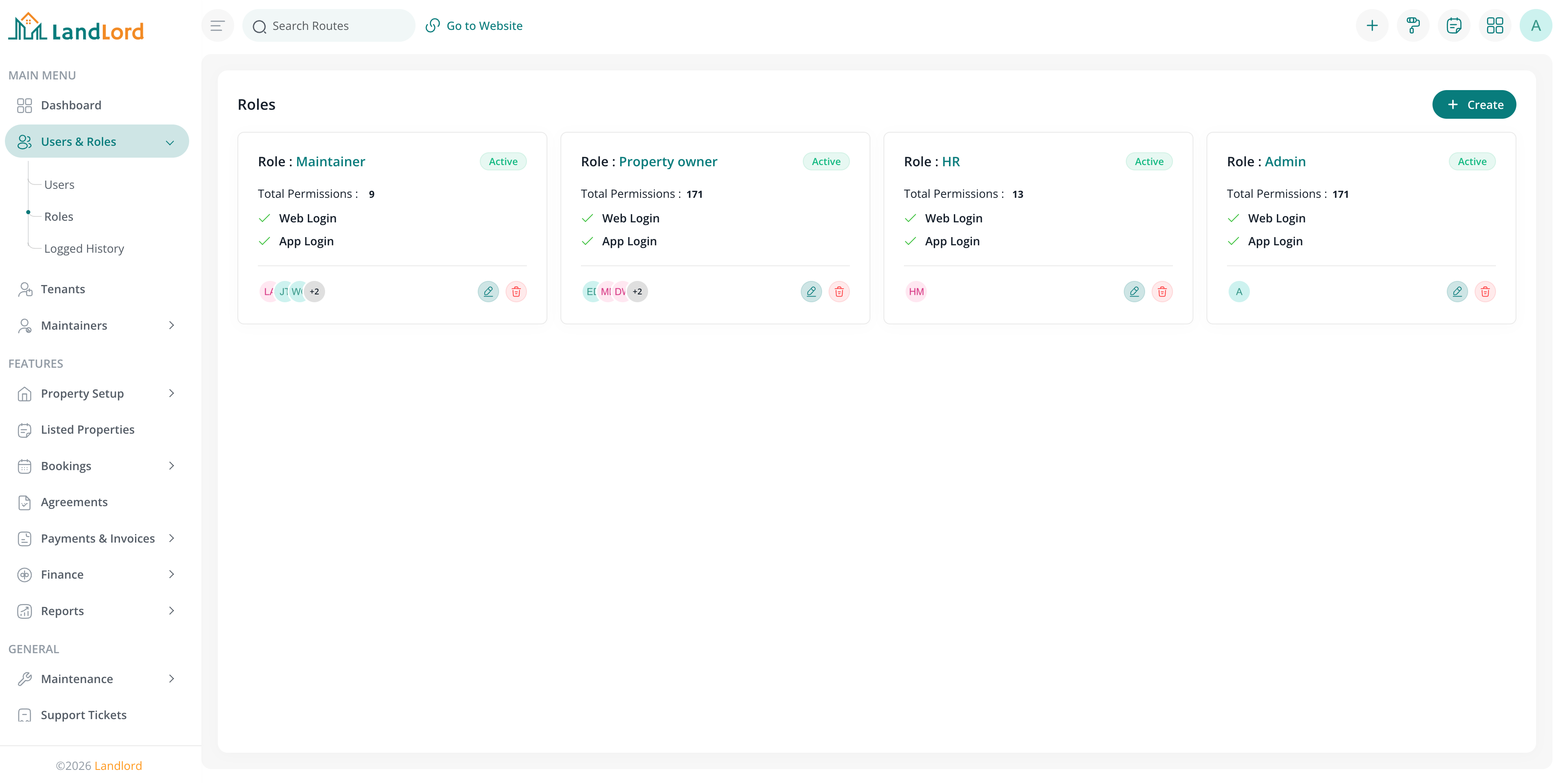
Role management screen showing available roles in the granular access control.
Best Practices
- Create roles based on job functions rather than individuals
- Assign permissions to roles, not individual users (except for special cases)
- Regularly review user access and remove unnecessary permissions
- Use departments and designations for organizational structure and reporting
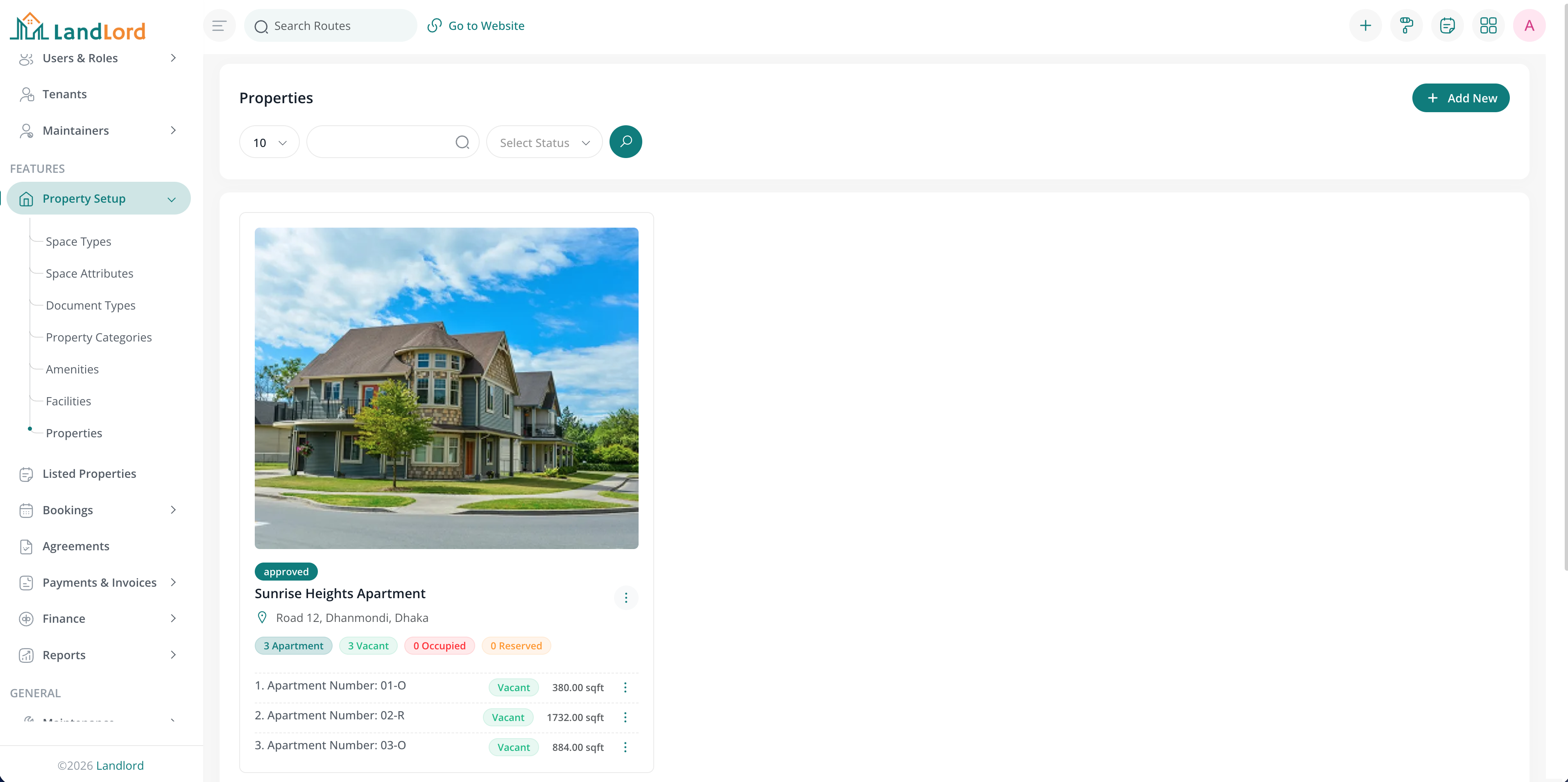
Properties
Properties are the core building records: address (country, state, city), category, images, documents, amenities, and facilities. Each property can have multiple property spaces (units) with their own details, pricing, and listings.
Navigate to Properties in the admin menu to create and edit properties, add spaces, manage images and documents, and configure amenities and facilities. Use filters by branch, category, and status.
Property creation screen showing the basic information fields.
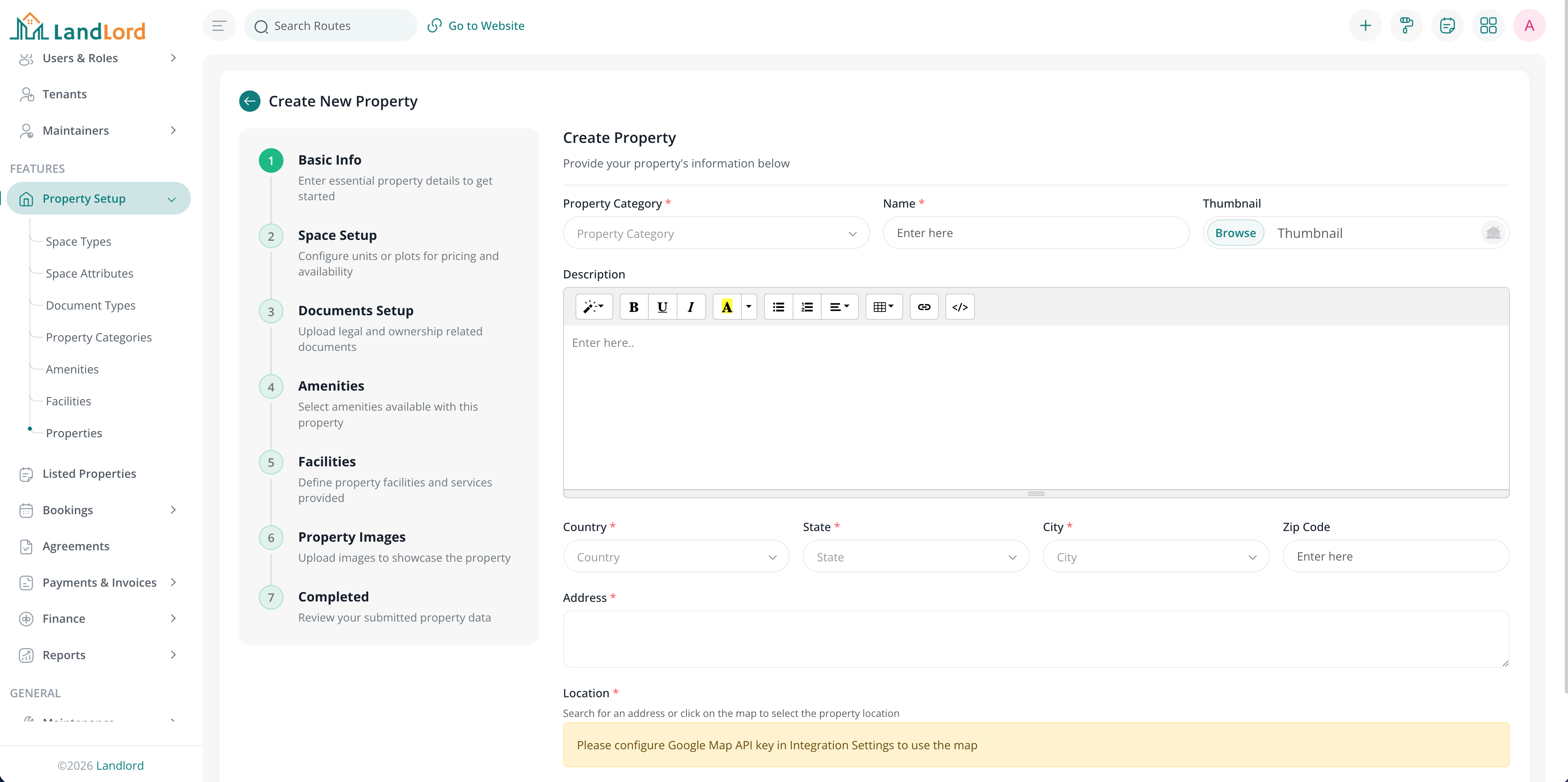
Property creation screen showing the basic information fields.
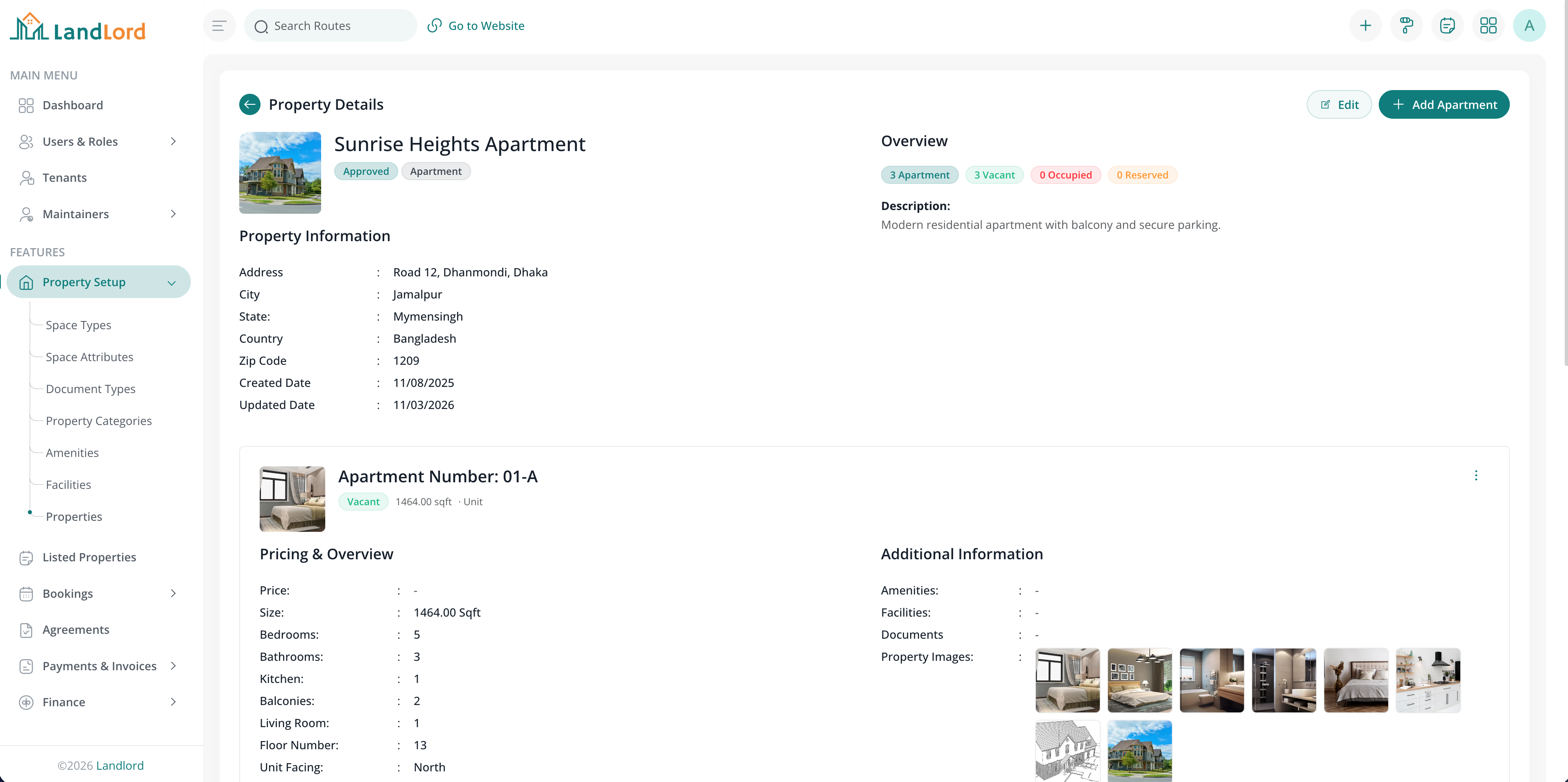
Property details screen showing the property details with all spaces included.
Property spaces & listings
Listings are rent or purchase offers on a property space. Each listing can have multiple pricing options (e.g. monthly rent, purchase price), availability dates, and listing type. Tenants browse listings on the public frontend and submit booking requests.
Manage listings from Listings or from a property space. Create and edit pricing, set availability, and link listings to agreements once bookings are confirmed.
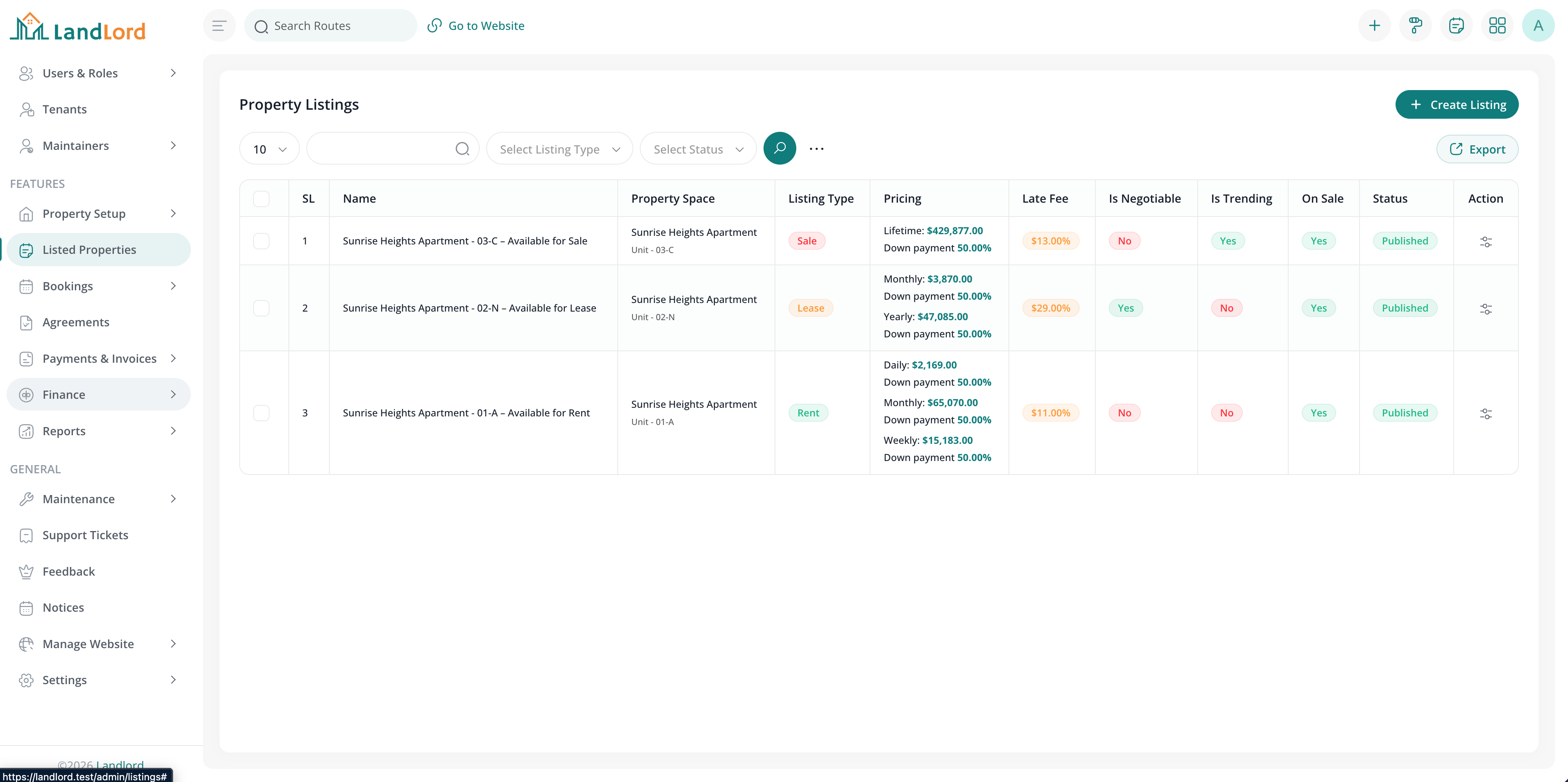
Property listings screen showing the all listings for the property.
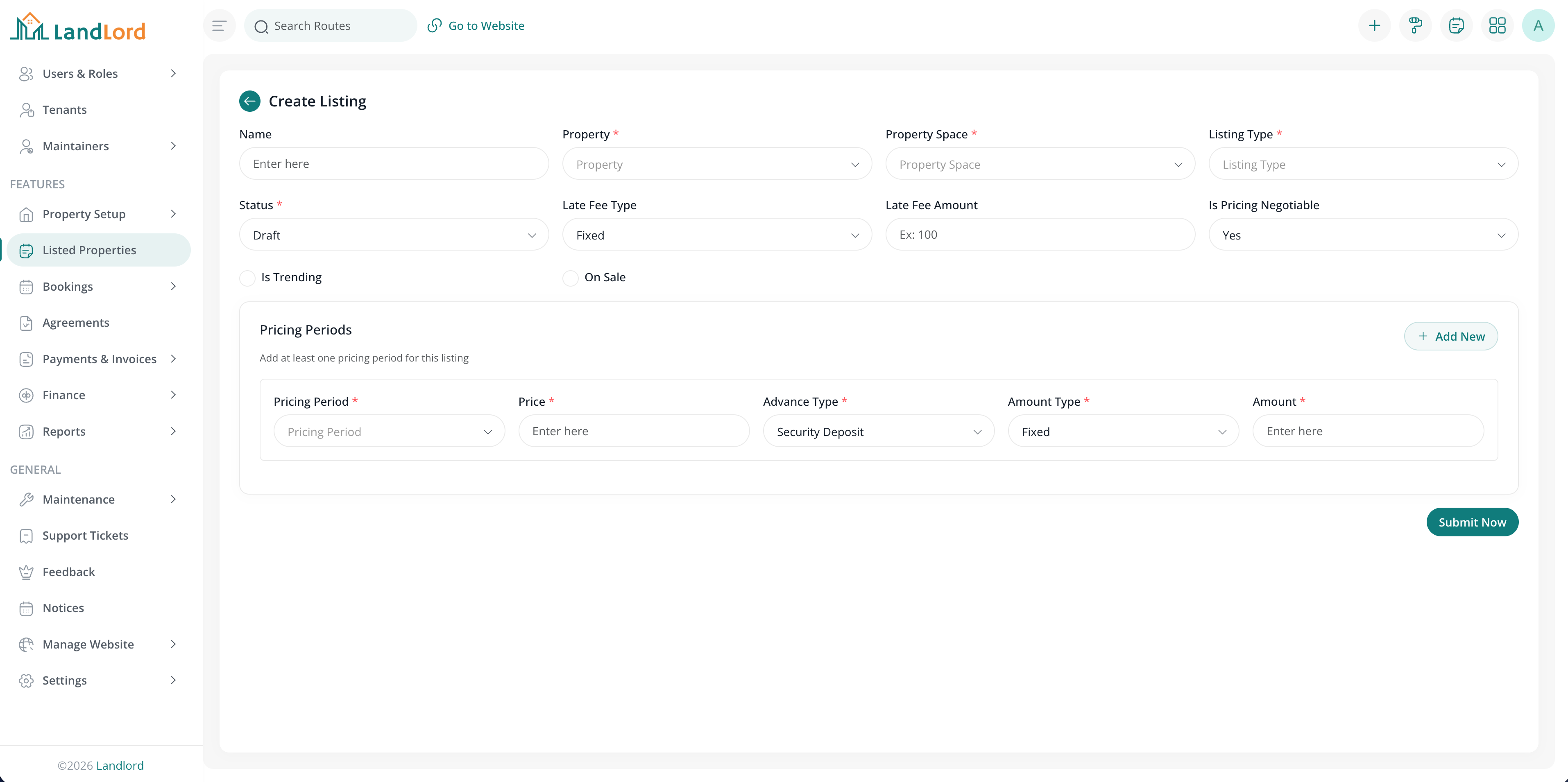
Property listing create screen showing the basic information fields.
Tenants
Tenants are users who can submit bookings, sign agreements, pay invoices, and use the tenant portal (maintenance requests, support tickets, notices, wishlist). Admin can create and manage tenant records, verify tenants, and view their agreements and payment history.
Navigate to Tenants to view and filter tenants, edit details, and manage verification status.
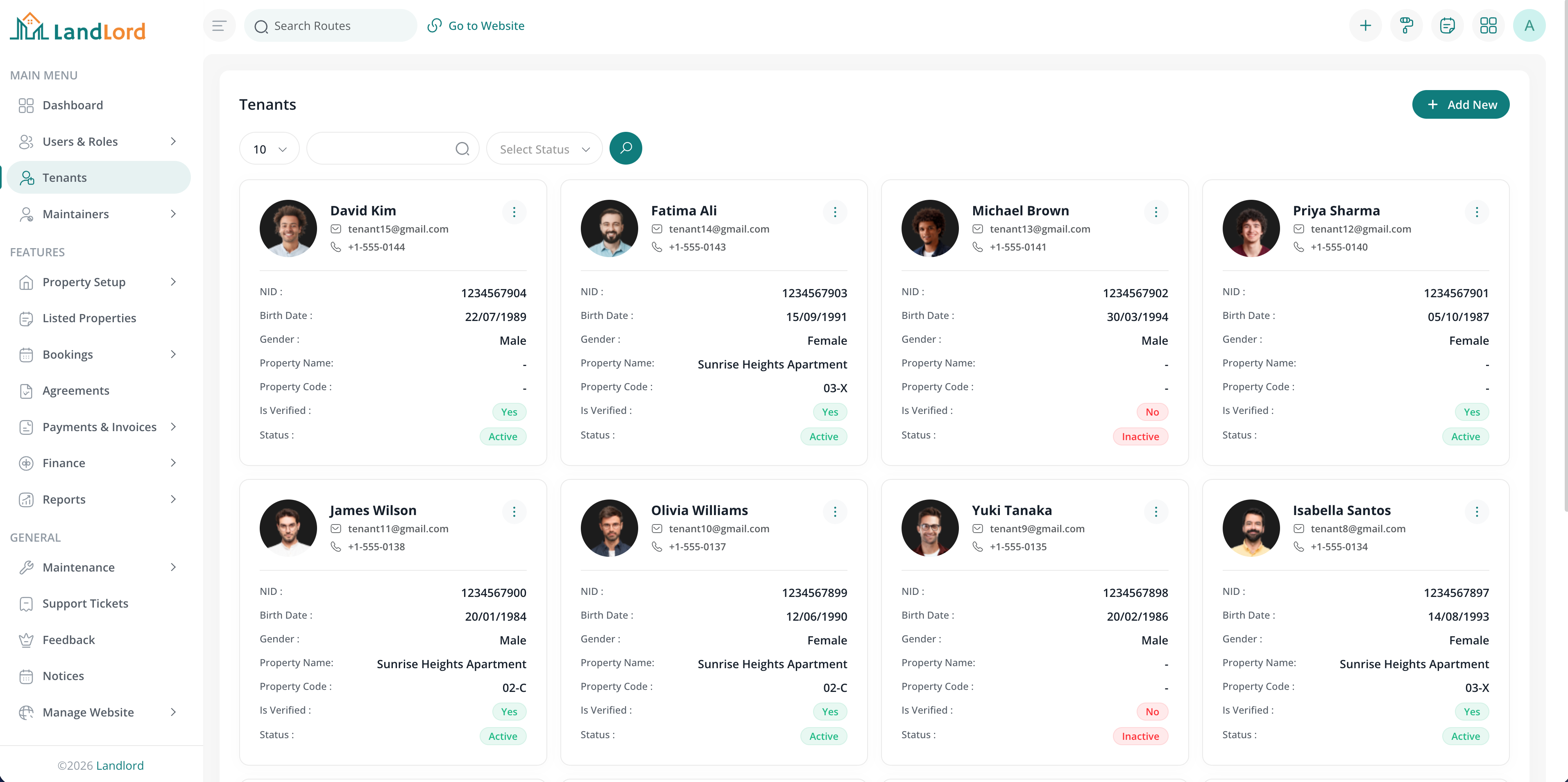
Tenants screen showing the all tenants in the system.
Bookings
Bookings are rent or lease requests on a listing. Flow: pending → approved or rejected → confirmed. From the admin panel you can view the booking calendar, approve or reject requests, and cancel bookings. A confirmed booking can be used to create an agreement.
Navigate to Bookings to filter by status, date, tenant, or listing and perform actions from the row menu.
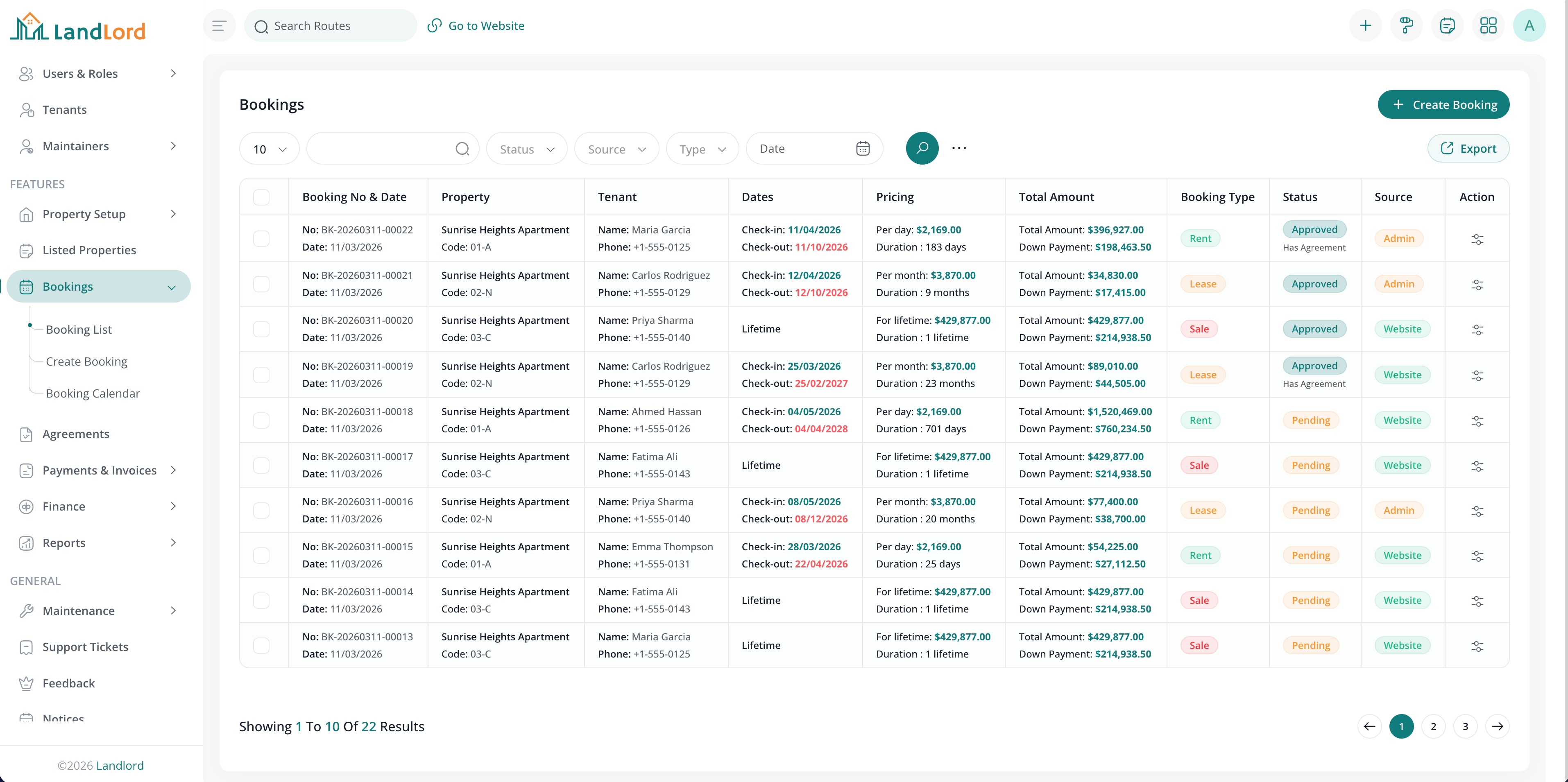
Bookings screen showing the all bookings in the system.
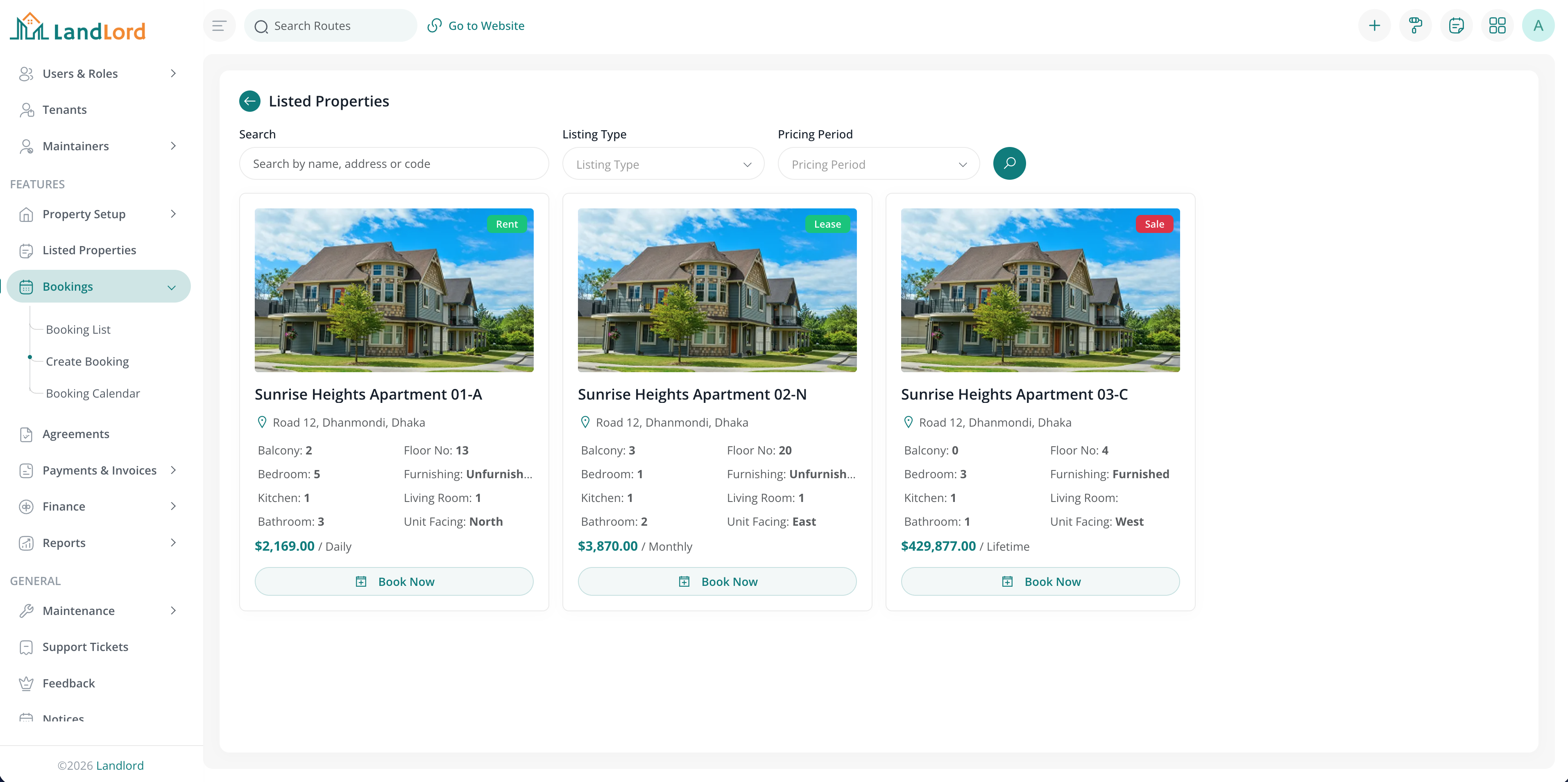
Listed properties screen showing the all listed properties in the system for booking.
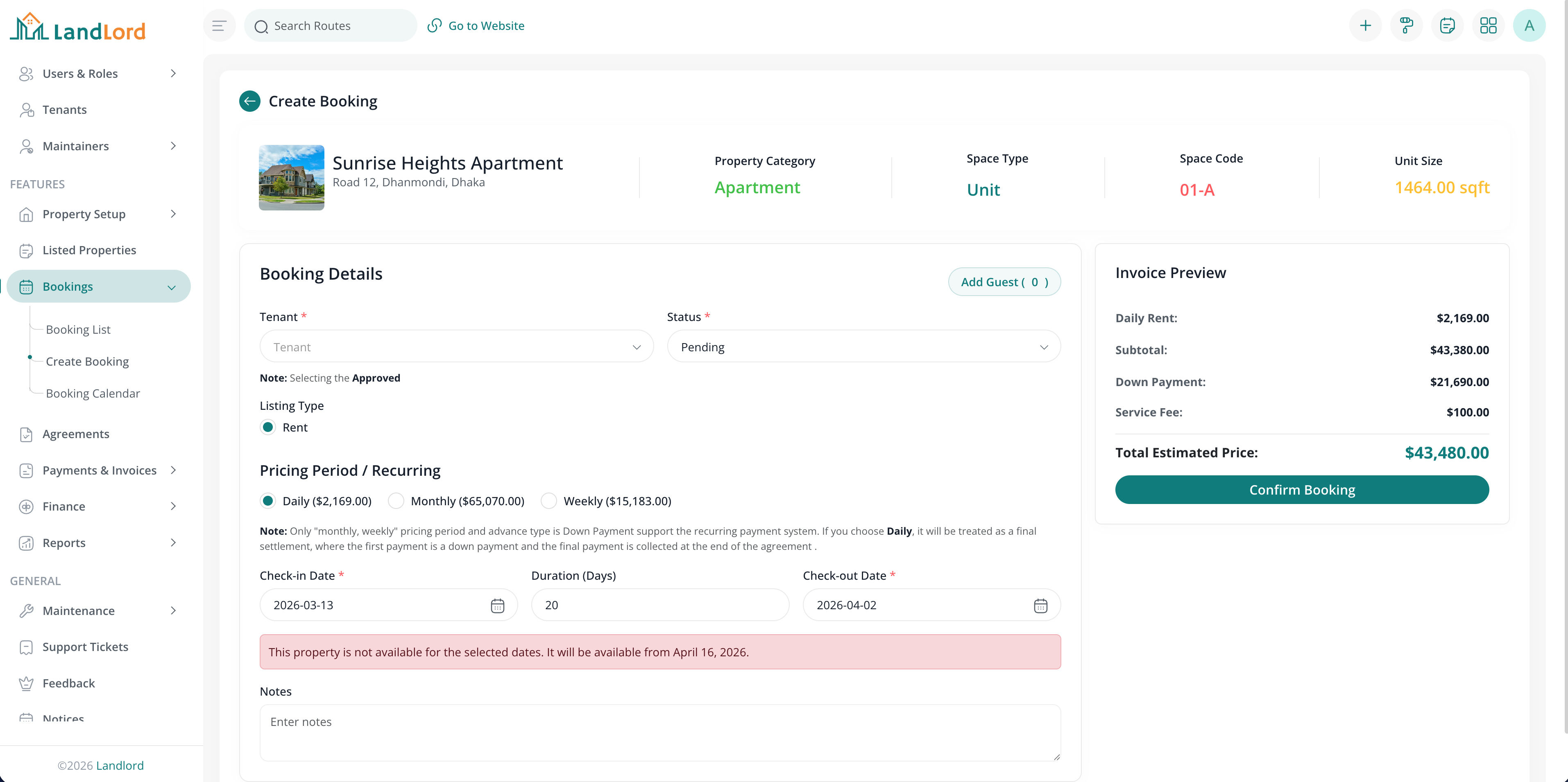
Booking create screen showing the basic information fields.
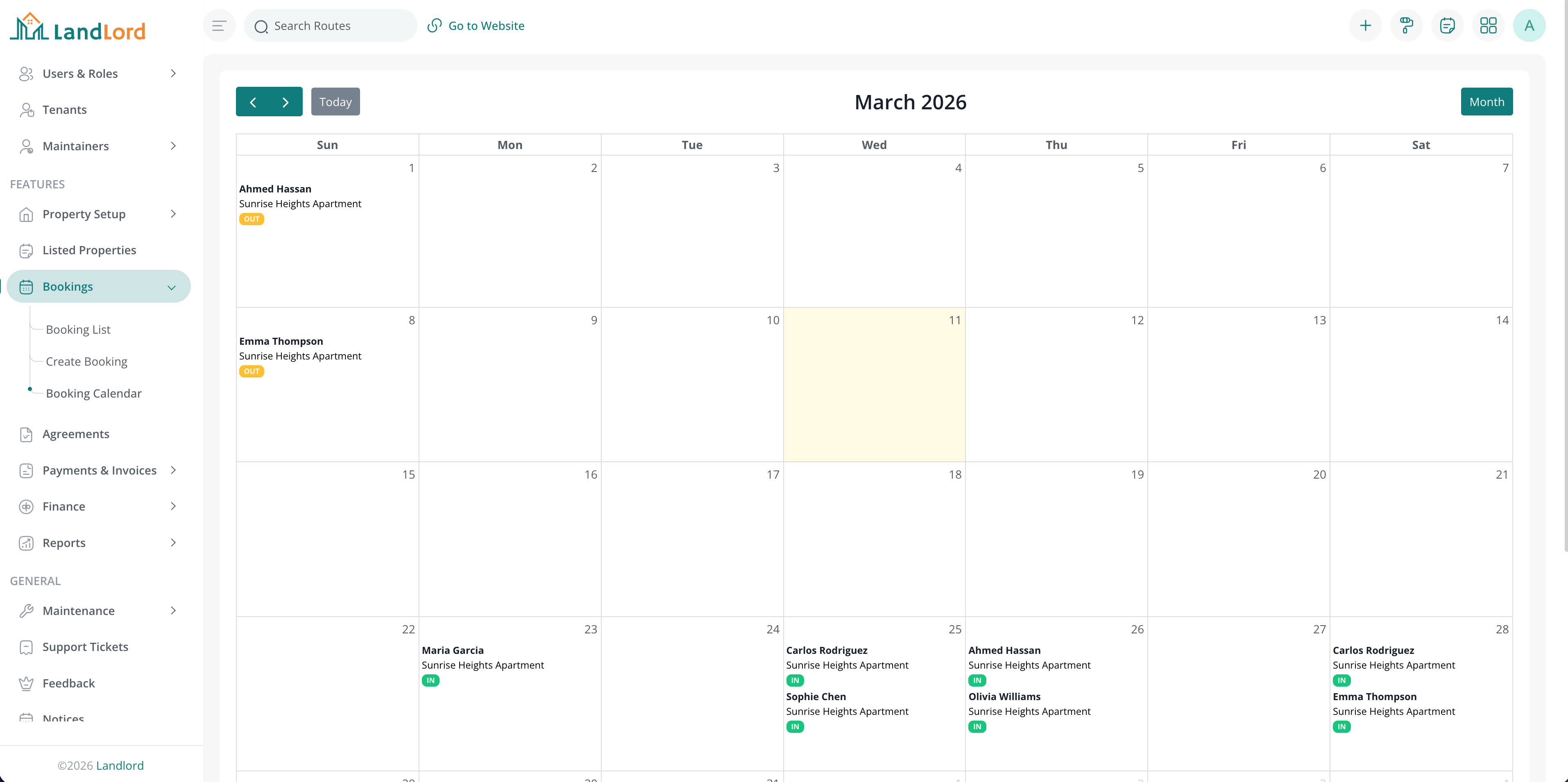
Booking calendar screen showing the all bookings in the system.
Agreements
Agreements are lease contracts linked to a booking. Track status (e.g. active, signed, waiting), generate invoices from the agreement, and print or record manual sign-off. Agreement templates can be configured in settings.
Navigate to Agreements to view, create, and manage agreements; use the action menu for print and signing options.
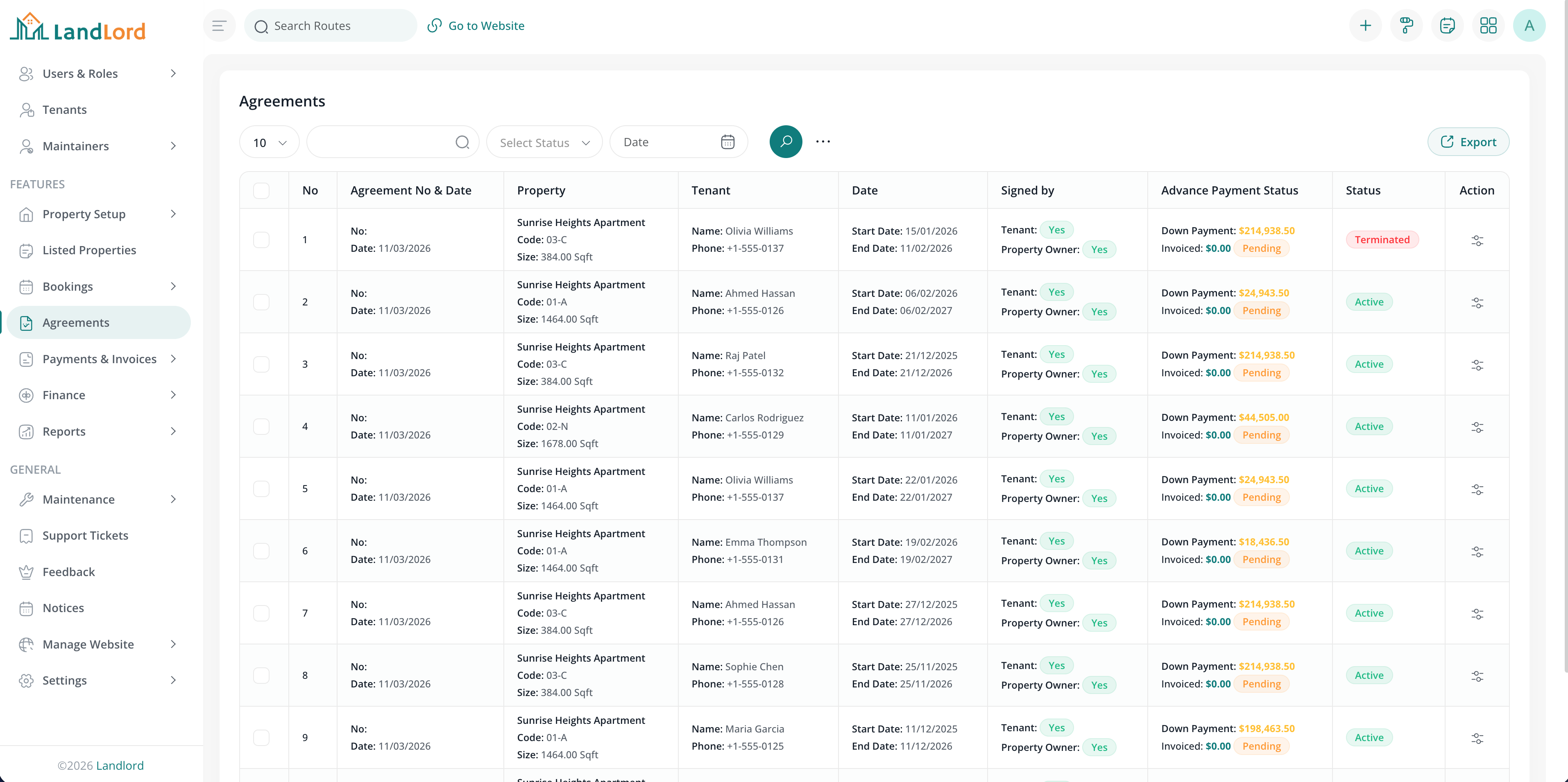
Agreements screen showing the all agreements in the system.
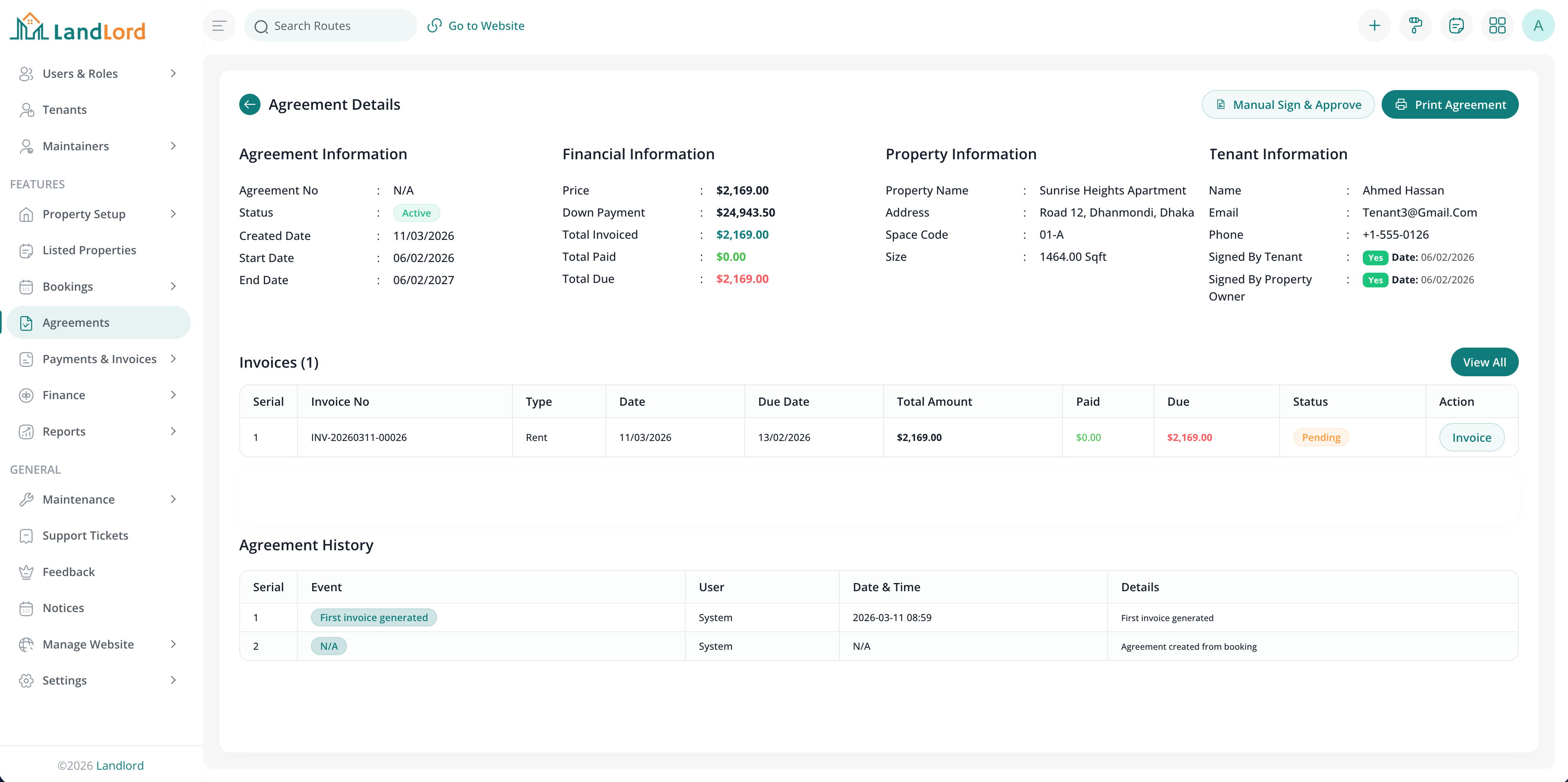
Agreement details screen showing the details of the agreement.
Invoices & payments
Invoices are bills (rent, security deposit, down payment, etc.) linked to an agreement. Tenants pay via the tenant portal using configured payment gateways. Payments are recorded against invoices; admin can verify and refund payments from the Payments section.
Navigate to Invoices and Payments to view and filter by agreement, tenant, status, and date. Use row actions to view details, mark paid, or issue refunds where supported. Use Generate Invoice when you need to create an ad-hoc invoice (e.g. missed period, one-off charge, or manual bill).
Manual invoice generation
To create a new invoice manually: first select a tenant; the Agreement dropdown is then populated with that tenant’s agreements (active, signed, or waiting). Then select a specific agreement. On selection, the form loads:
- Agreement details — agreement number, status, start and end dates
- Property information — property name, address, space code, size
- Booking information — pricing period, price per unit, check-in/check-out dates
- Previous invoice history for that agreement (to avoid duplicates)
Choose the invoice type (e.g. rent, security deposit). For rent type, the billing period section appears: you can select an unbilled period from the list, and billing start, billing end, and total amount are filled from that selection (or enter them manually). Set due date and optional notes, then generate the invoice.
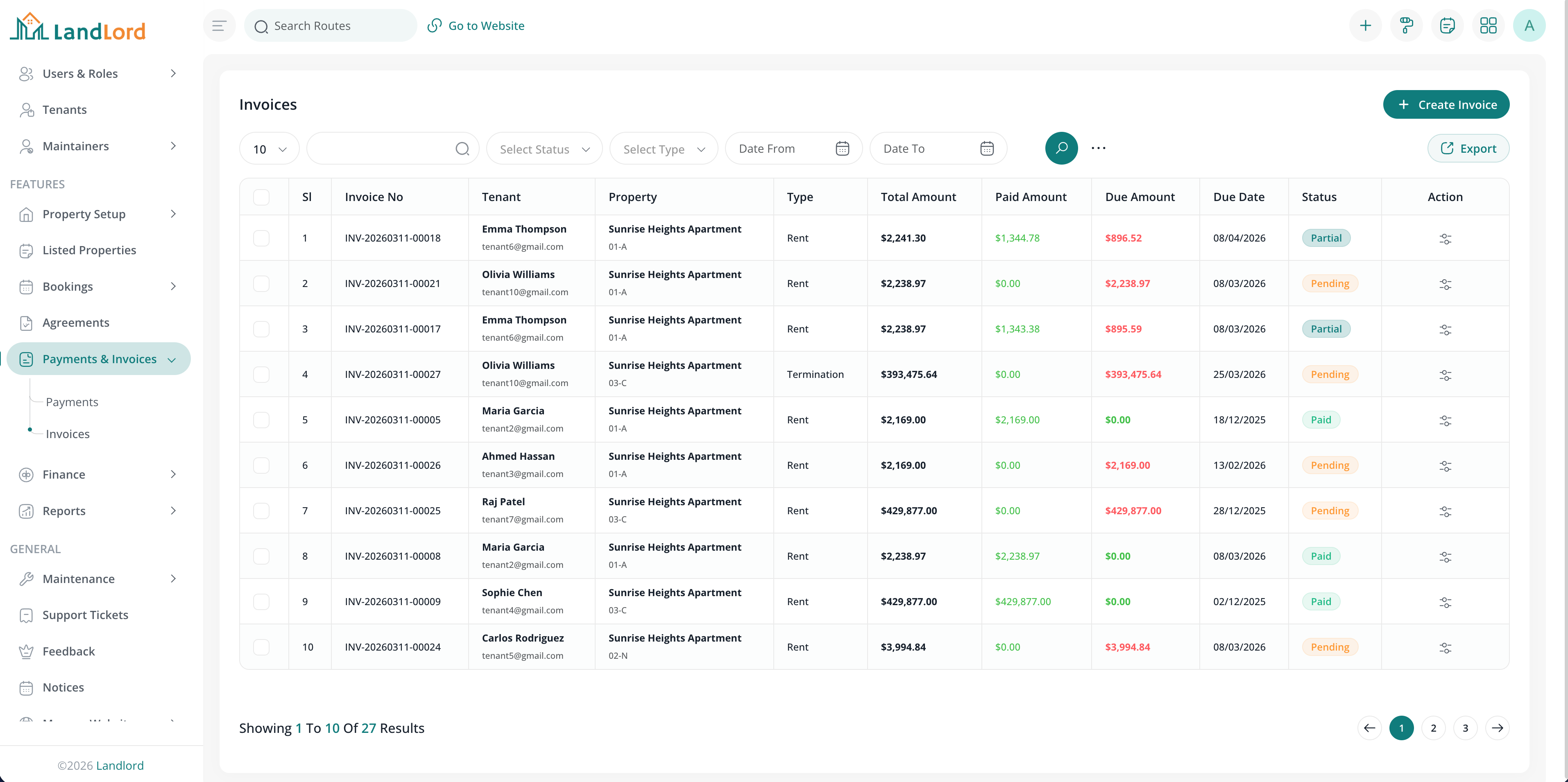
Invoices & Payments screen showing all invoices and payments in the system.
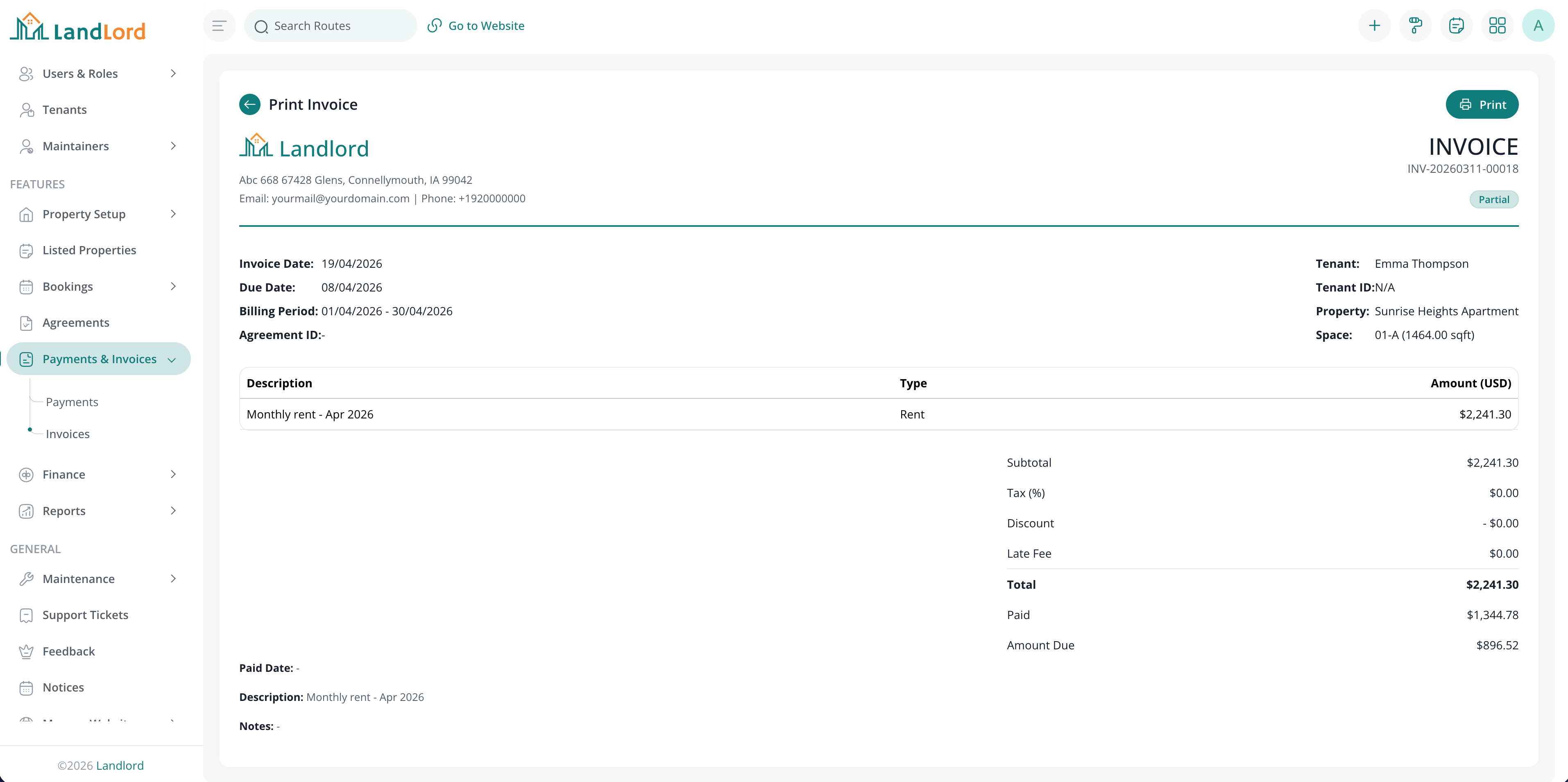
Invoice screen showing the details of the invoice.
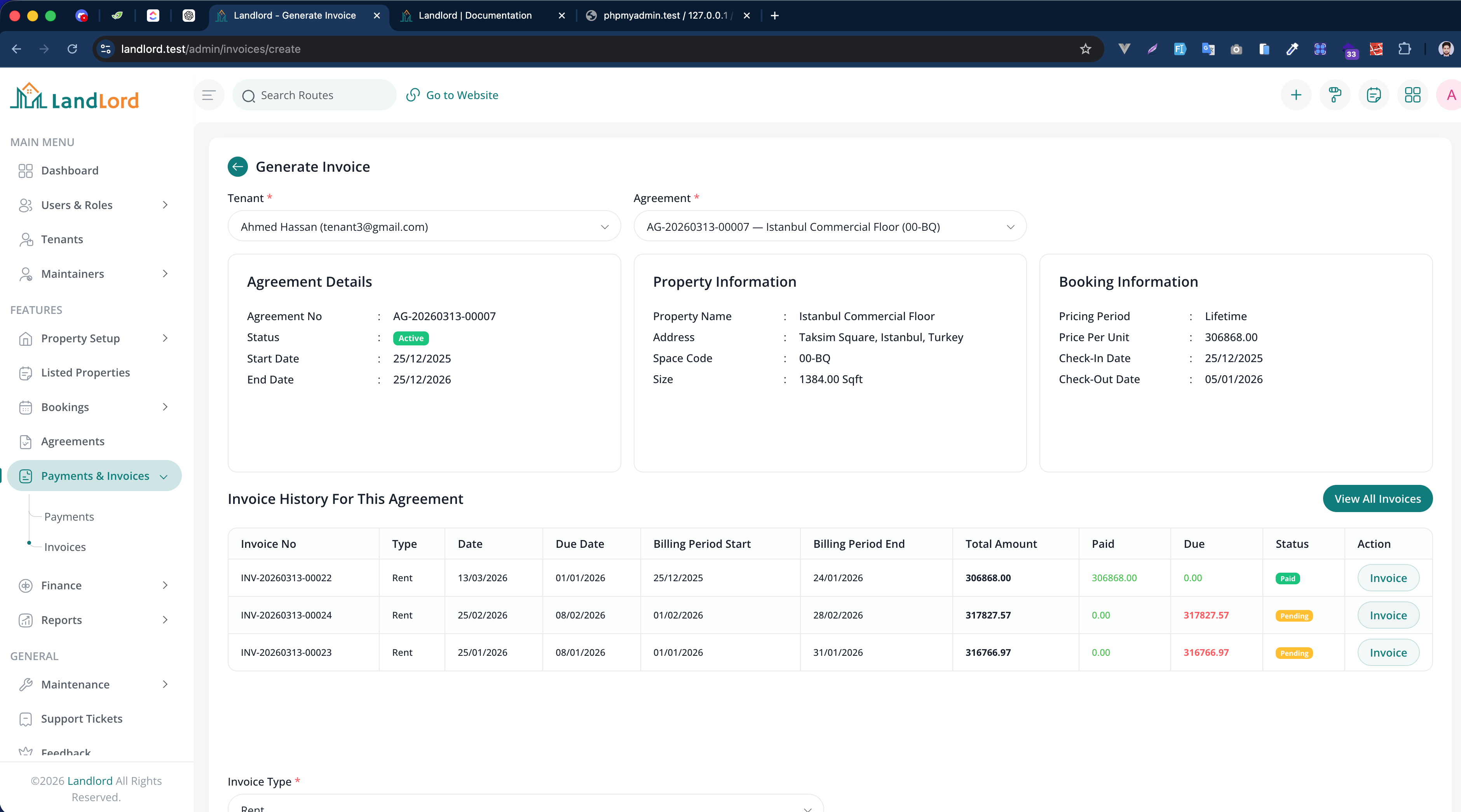
Generate Invoice screen: select tenant, then agreement; agreement details and billing period (start, end, total amount) load on agreement selection.
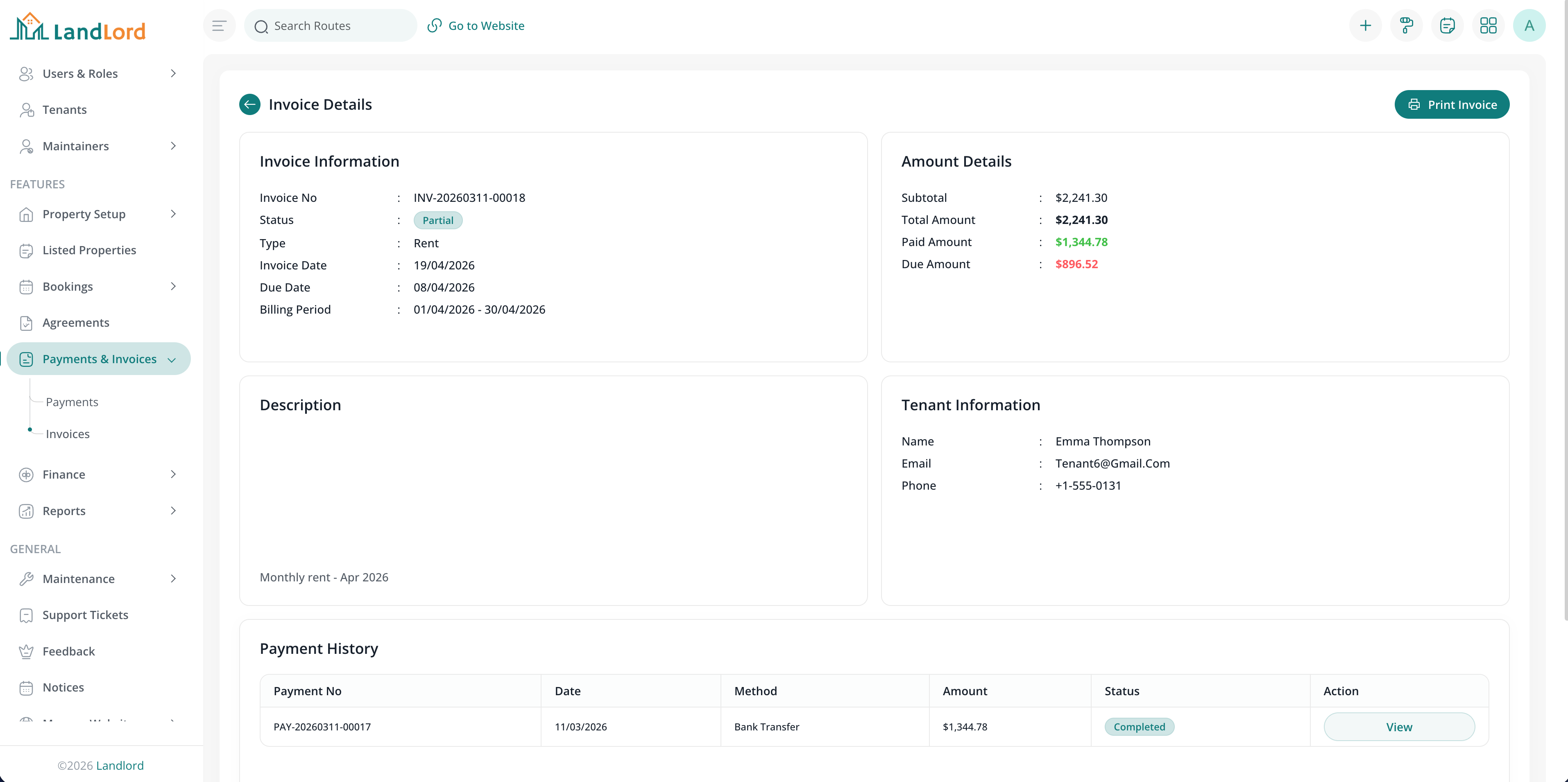
Invoice details screen showing the details of the invoice and the payments.
Maintenance
Maintenance work orders are created for a property or property space. Assign work to maintainers (users with maintainer role), track status, and manage issue types (e.g. plumbing, electrical). Tenants submit maintenance requests from the tenant portal.
Navigate to Maintenance to view and filter work orders, assign maintainers, and update status.
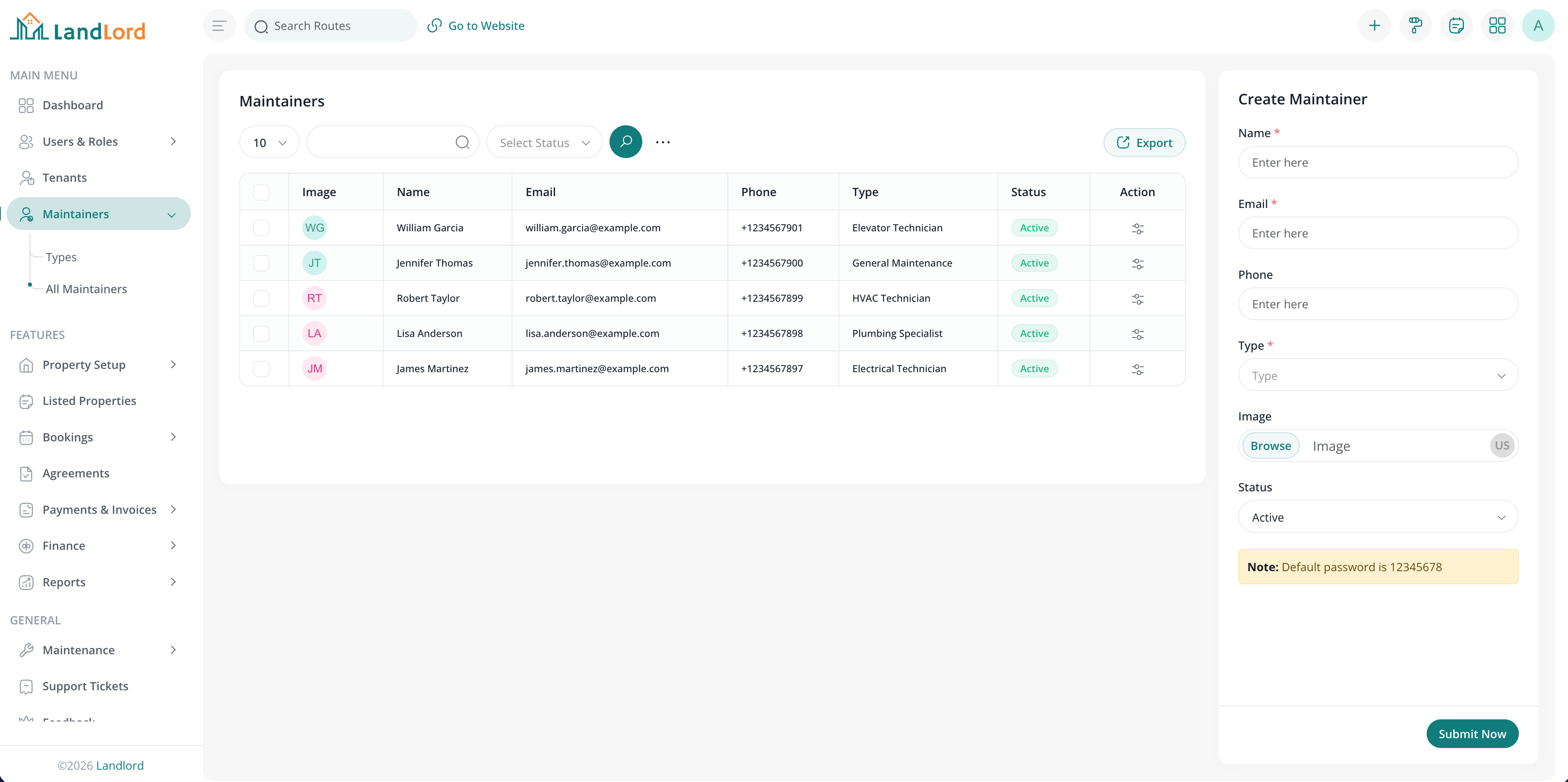
Maintainers screen showing the all maintainers in the system.
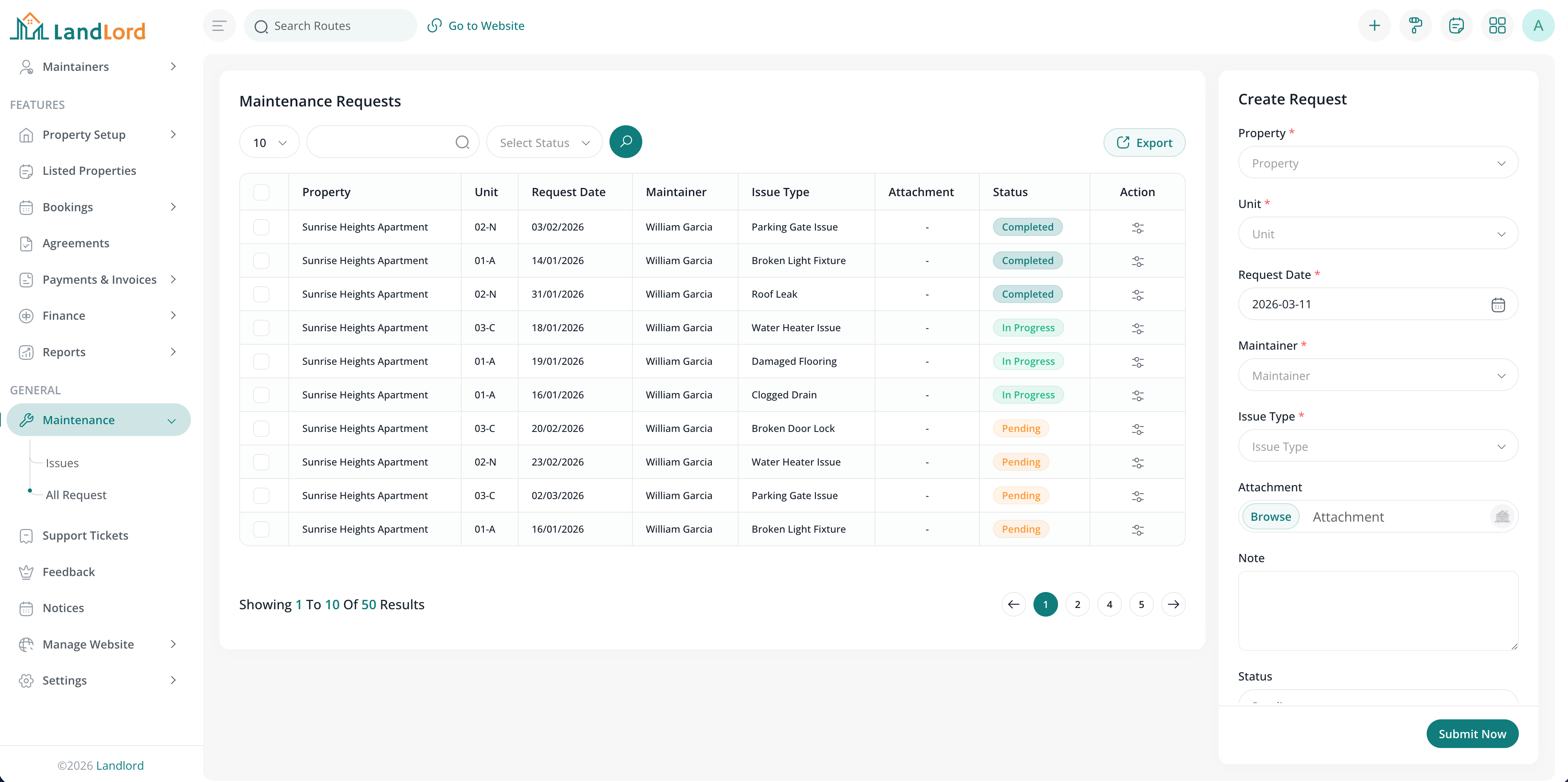
Maintenance requests screen showing the all maintenance requests in the system.
Support tickets
Support tickets let tenants contact you with questions or issues. Admin can view tickets, reply, and manage status from the Support section.
Notices
Notices are messages sent to tenants (e.g. announcements, policy updates). Create and publish notices from the admin panel; tenants can view and download them in the tenant portal.
Reports & analytics
The Reports & Analytics module provides financial and operational insights: payments, invoices, income, expenses, and other report types. Use the dashboard and report filters to monitor revenue, outstanding balances, and property-level performance.
Navigate to Reports in the admin menu to access payment reports, invoice summaries, financial reports, and related analytics.
Report types
Reports typically include:
- Payments & invoices: Revenue and outstanding amounts over selected periods
- Income & expense: Track income and expenses by category and branch
- Agreements & occupancy: Active leases and booking pipeline
- Filtering: By date range, branch, property, or tenant as supported
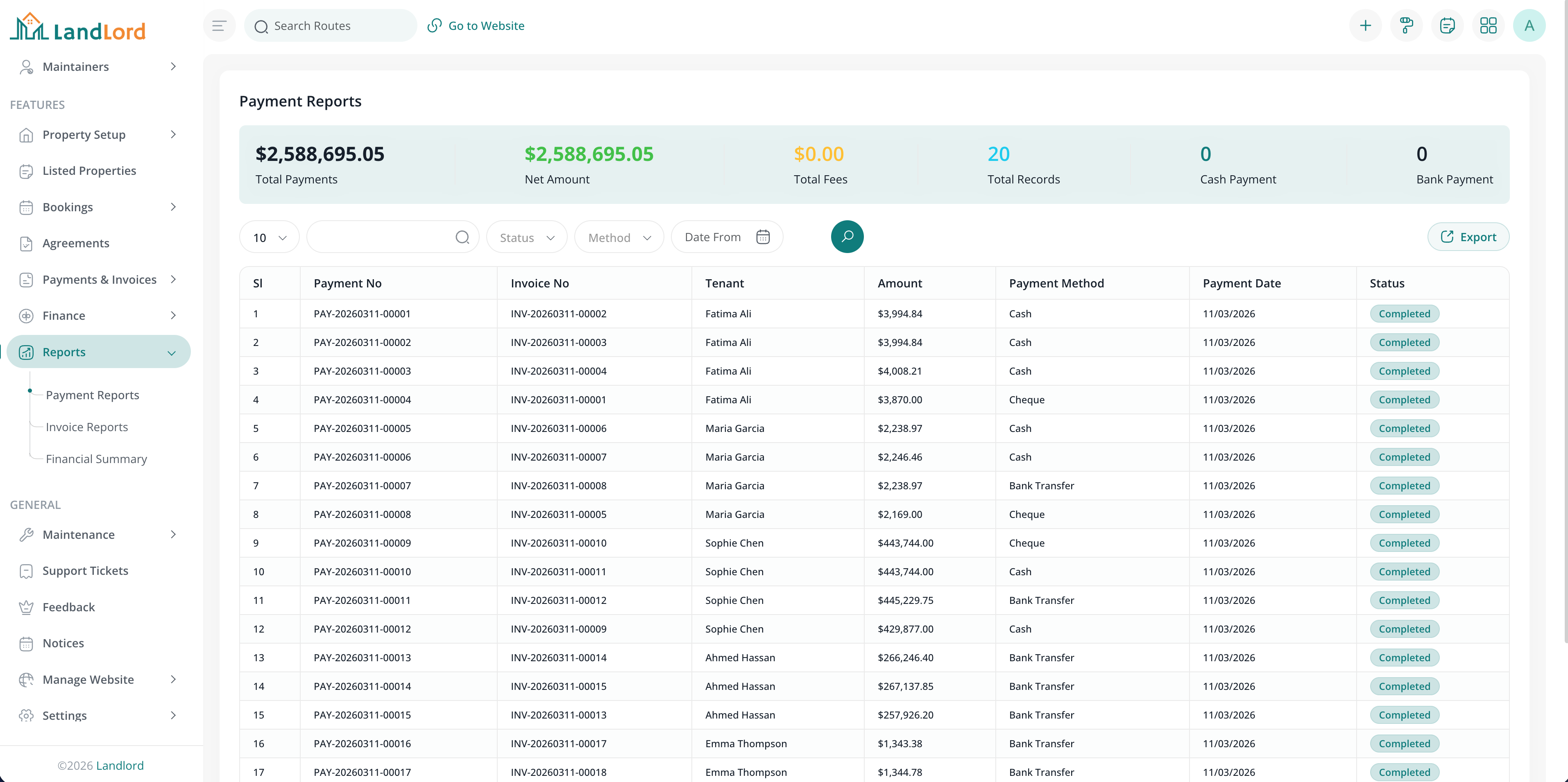
Payment reports screen showing the all payments in the system.
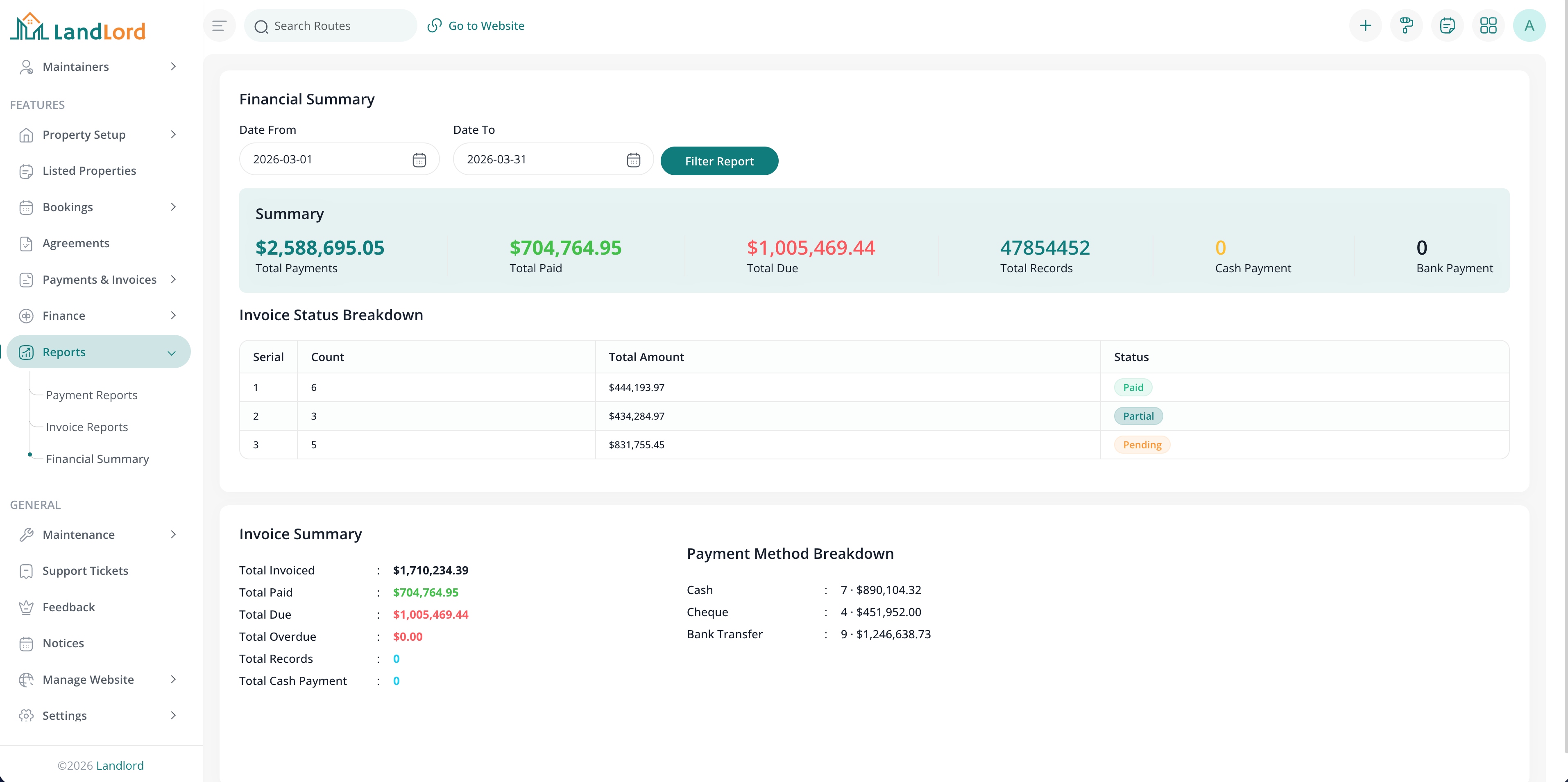
Financial summary screen showing the details of the financial summary.
Using Reports Effectively
- Filter by date range and branch for accurate comparisons
- Review payment and invoice reports for cash flow
- Export reports for accounting and presentations
Settings
- General: Site name, address, branding, company footer text, and meta tags.
- Addons & integrations: Payment gateways, Google, Zoom, and other addons.
- Locations: Countries, states, cities for property addresses.
- Currencies & languages: Multi-currency and multi-language support.
- Agreement templates: Reusable lease agreement templates.
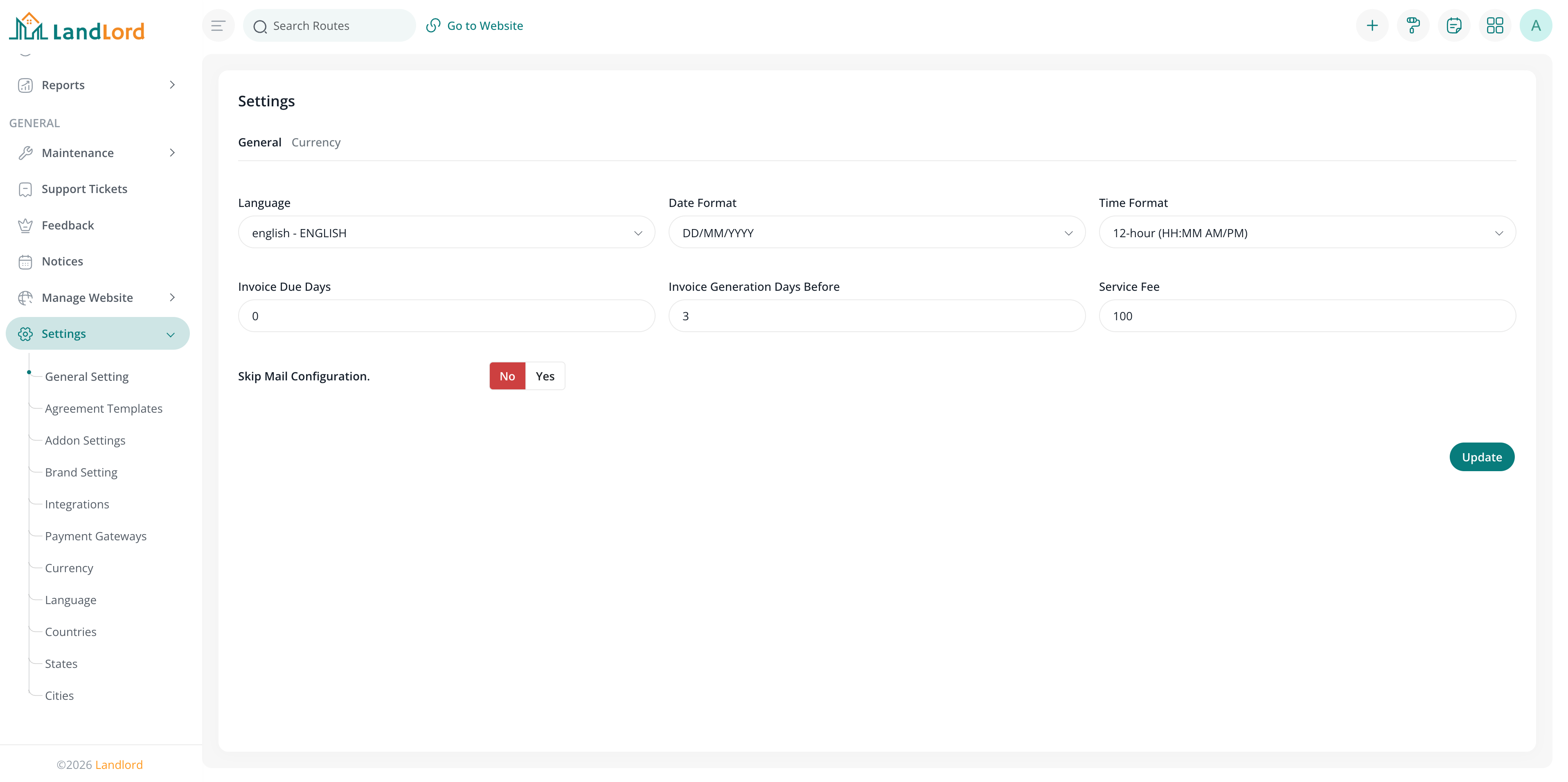
General settings screen
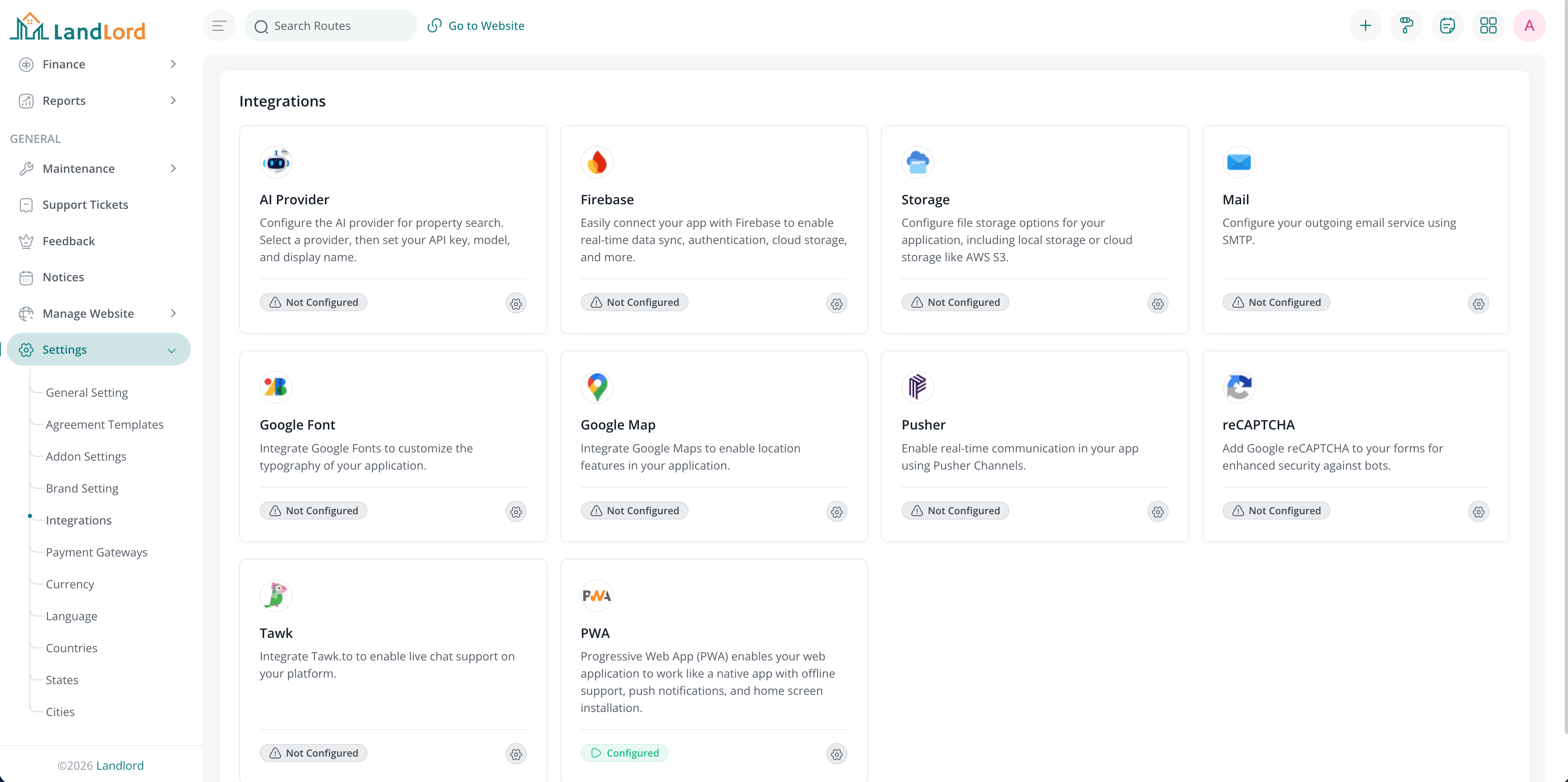
Integrations screen
Setup website content (home page)
You can customize the public site’s home page from the admin panel. Go to Manage Website → Homepage Builder. There you can choose and configure one of two hero layouts: Hero Style 01 or Hero Style 02. For each style you can enable or disable it, set the title and rich-text content, upload a background image, and define primary and secondary button text and links (e.g. “Find your property”, “Contact Us”).
You can also Enable Search Form to show a property search on the hero, and Enable Slider (sliders are managed under Sliders Management). Further sections such as About Section can be configured below the hero.
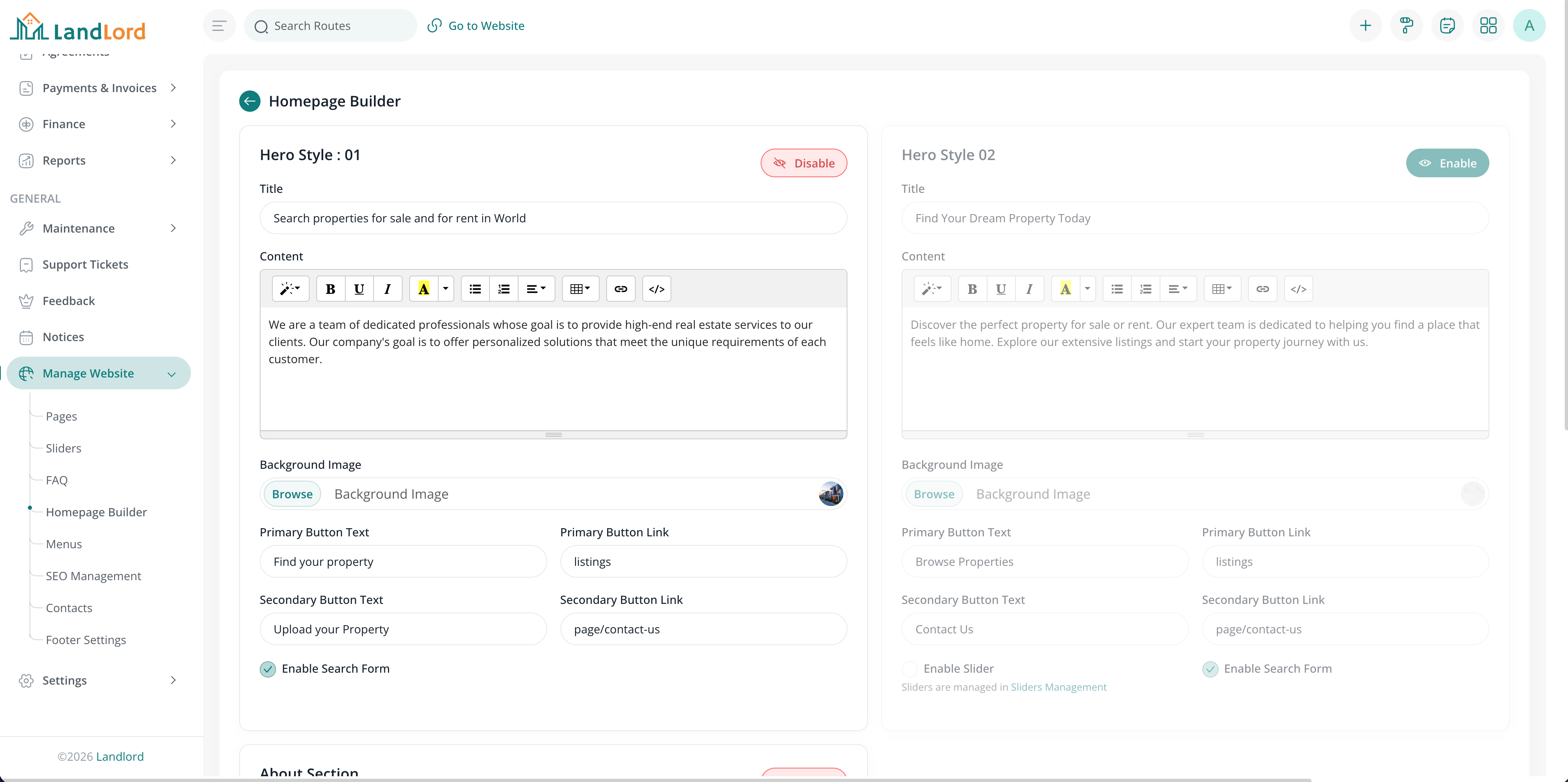
Homepage Builder with Hero Style 01 and 02: title, content, background image, buttons, search form, and slider options.
Tenant dashboard
Tenants log in at /tenant to access their dashboard. From here they can view bookings, agreements, upcoming payments, maintenance requests, support tickets, and notices. The dashboard provides quick links to pay invoices, submit maintenance requests, and manage profile and wishlist.
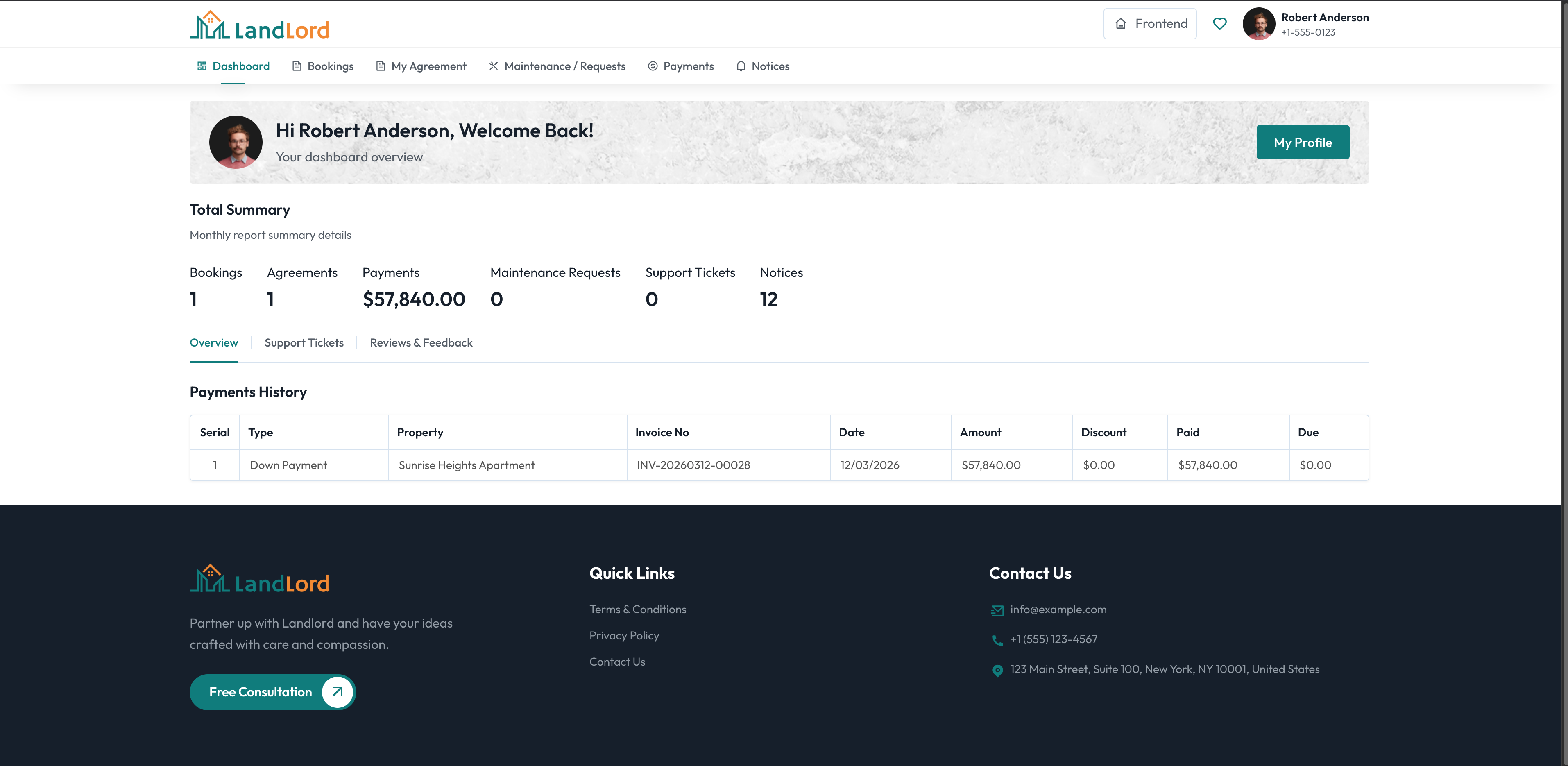
Tenant dashboard screen showing the all bookings in the system.
Bookings
In the tenant portal, tenants can view their booking requests (pending, approved, rejected, confirmed) and associated agreements. They can sign agreements electronically and track lease status. Renewal and termination flows are available where configured.
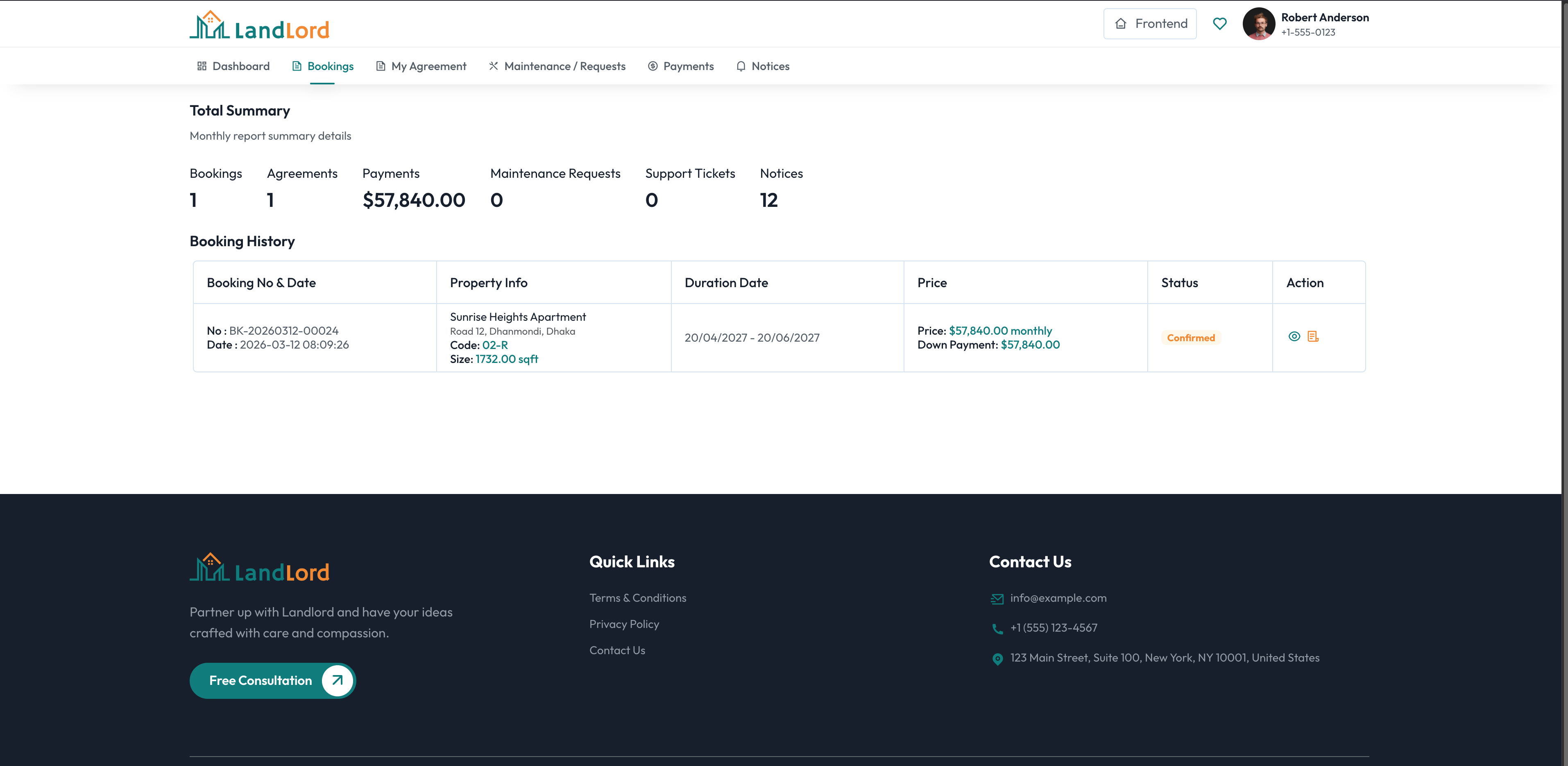
Bookings screen showing the all bookings in the system.
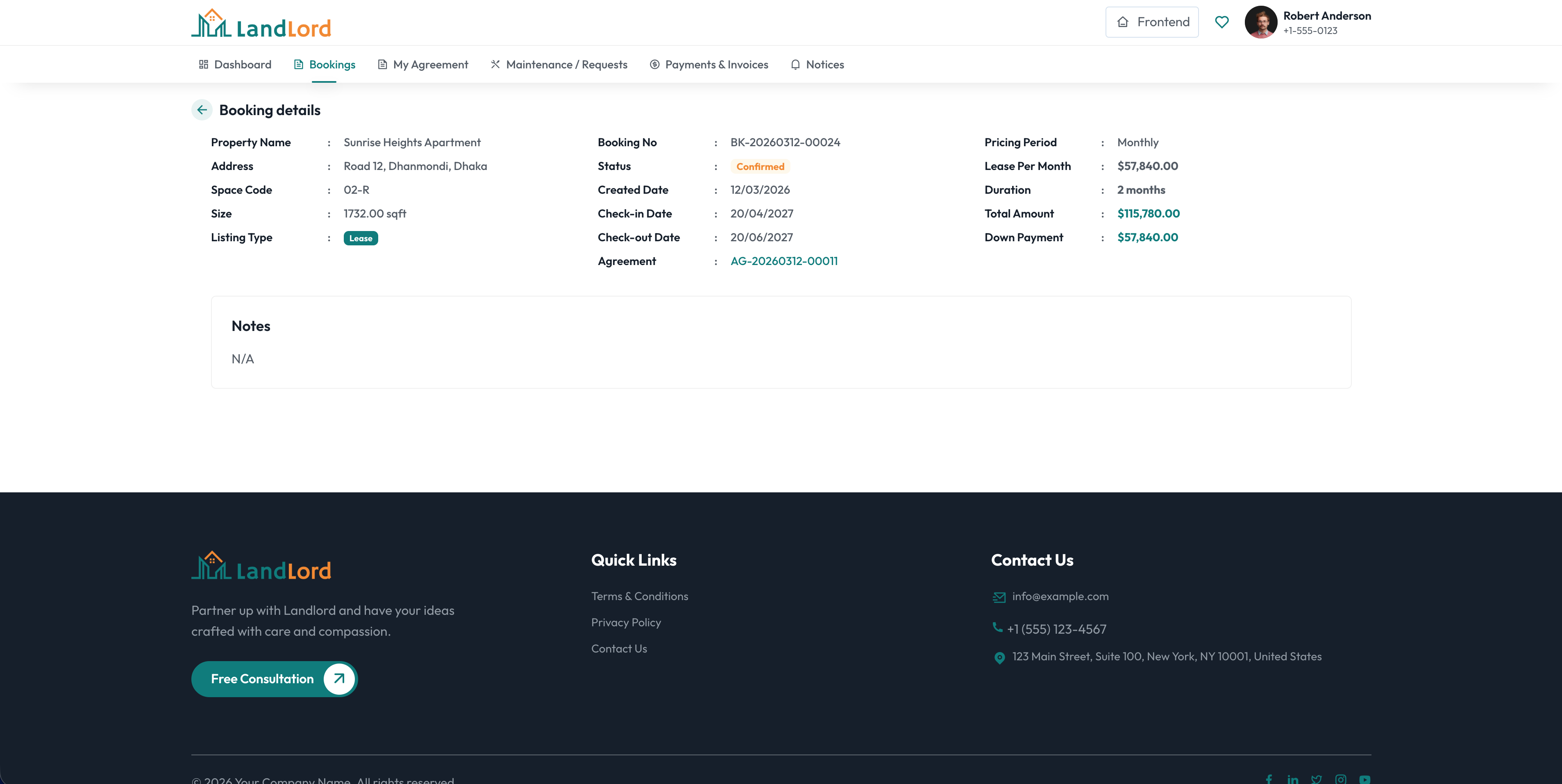
Booking details screen showing the details of the booking.
Agreements
In the tenant portal, tenants can view their agreements. They can sign agreements electronically and track lease status. Renewal and termination flows are available where configured.
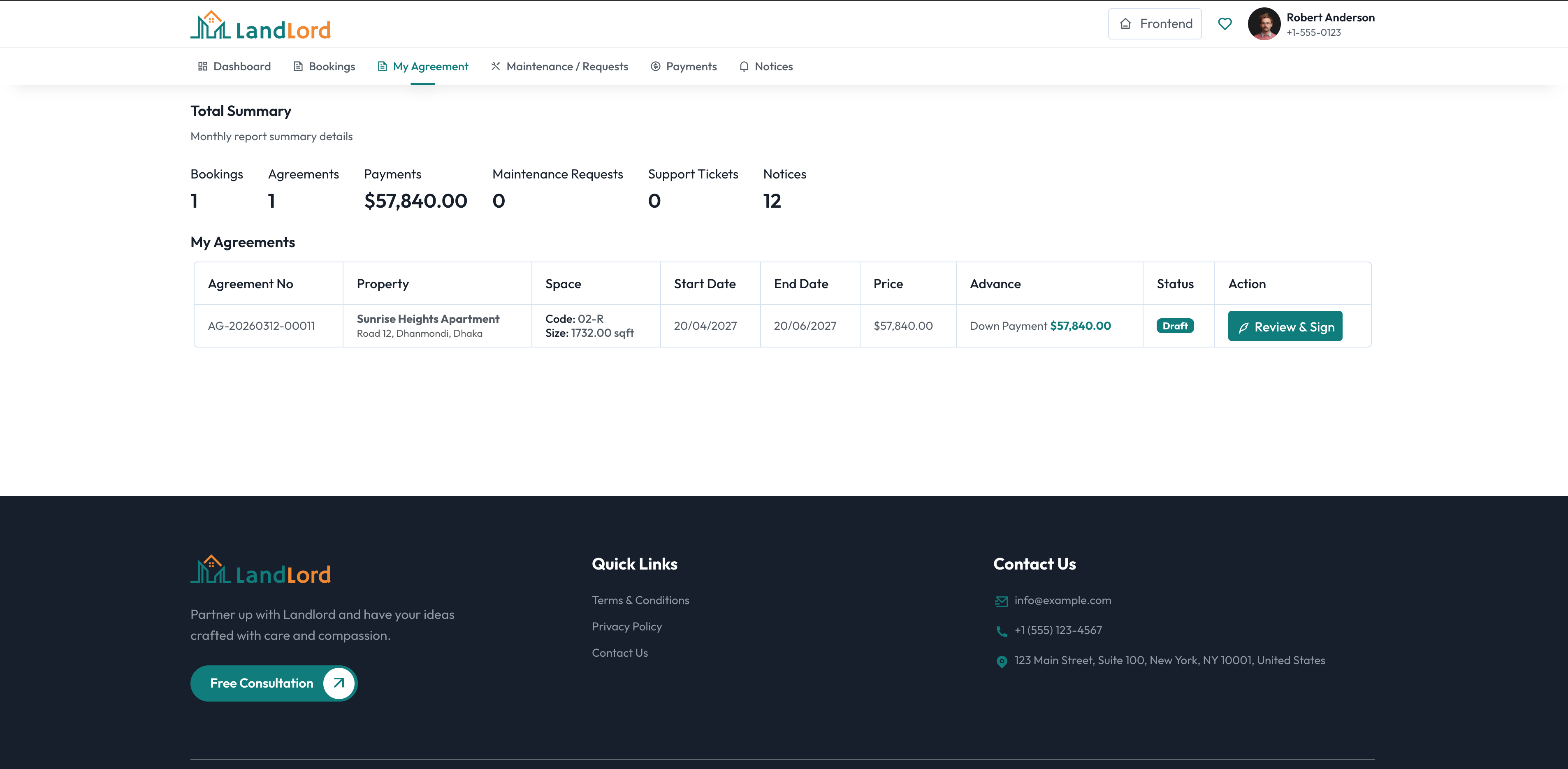
Agreements screen showing the all agreements in the system.
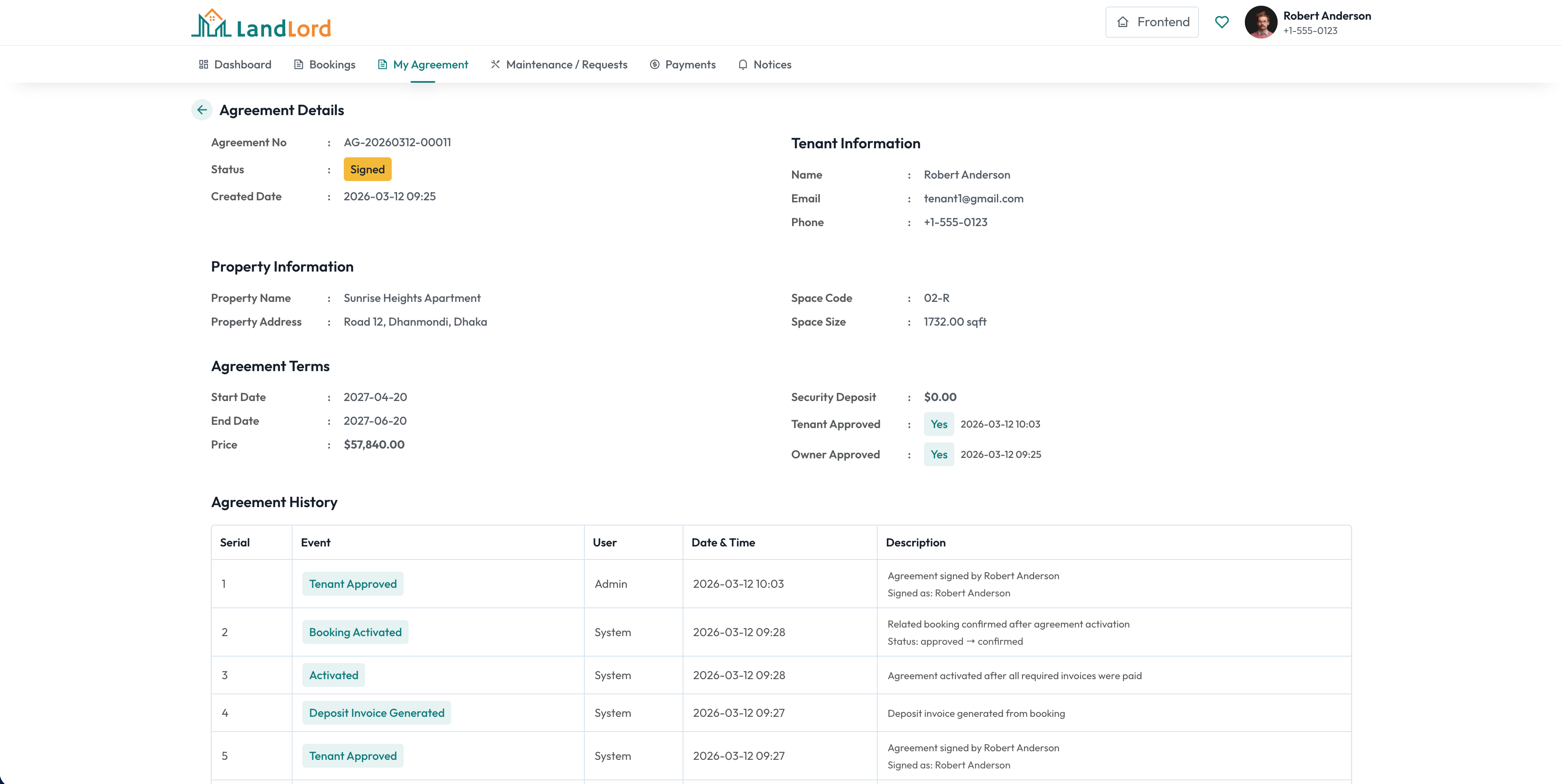
Agreement details screen showing the details of the agreement.
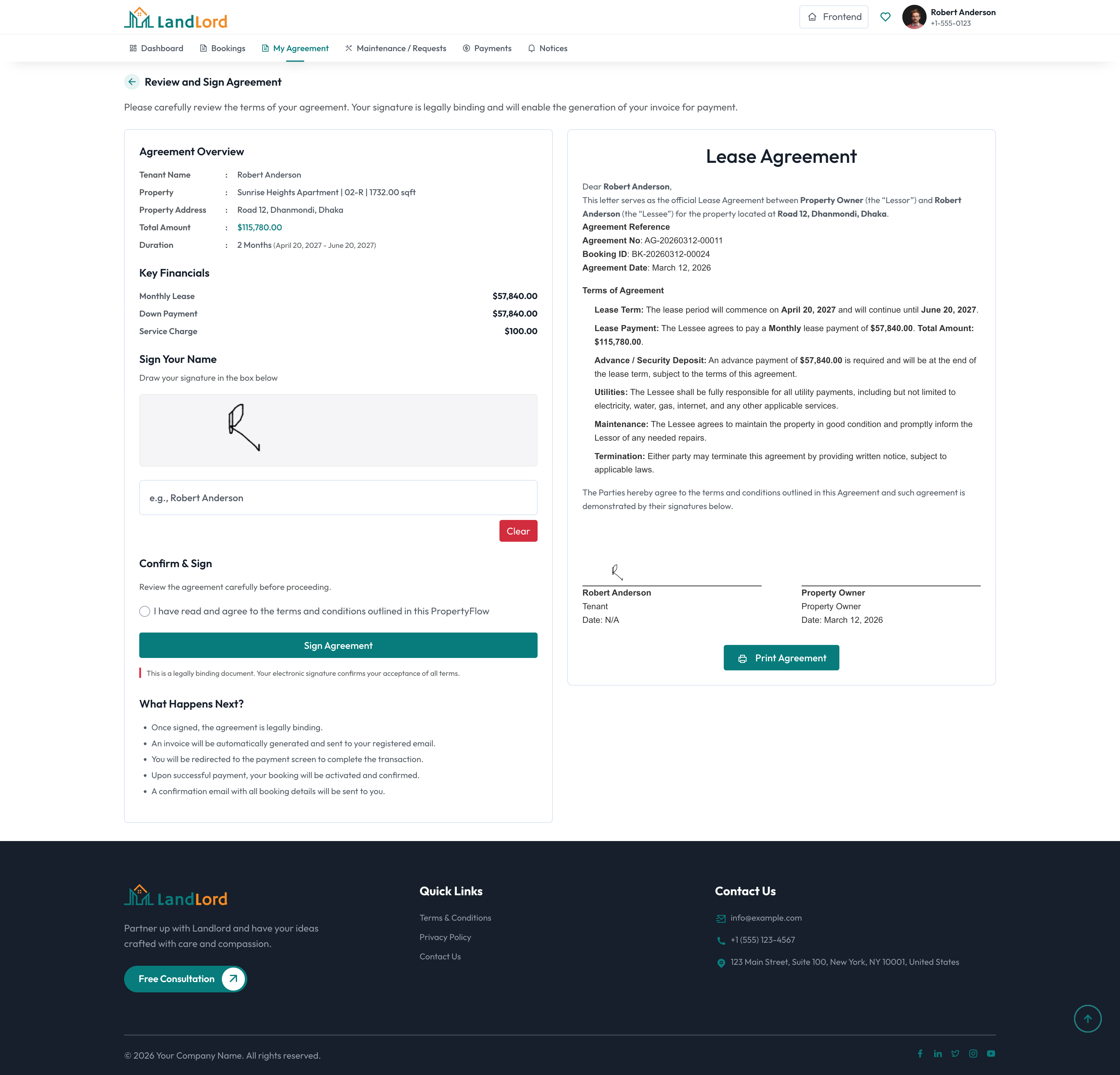
Agreement signature screen showing the details of the agreement.
Payments & Invoices
Tenants view and pay invoices from the tenant portal. Payment gateways (e.g. Stripe, PayPal, bank transfer) are configured in admin settings. Payment history and receipts are available in the tenant dashboard.
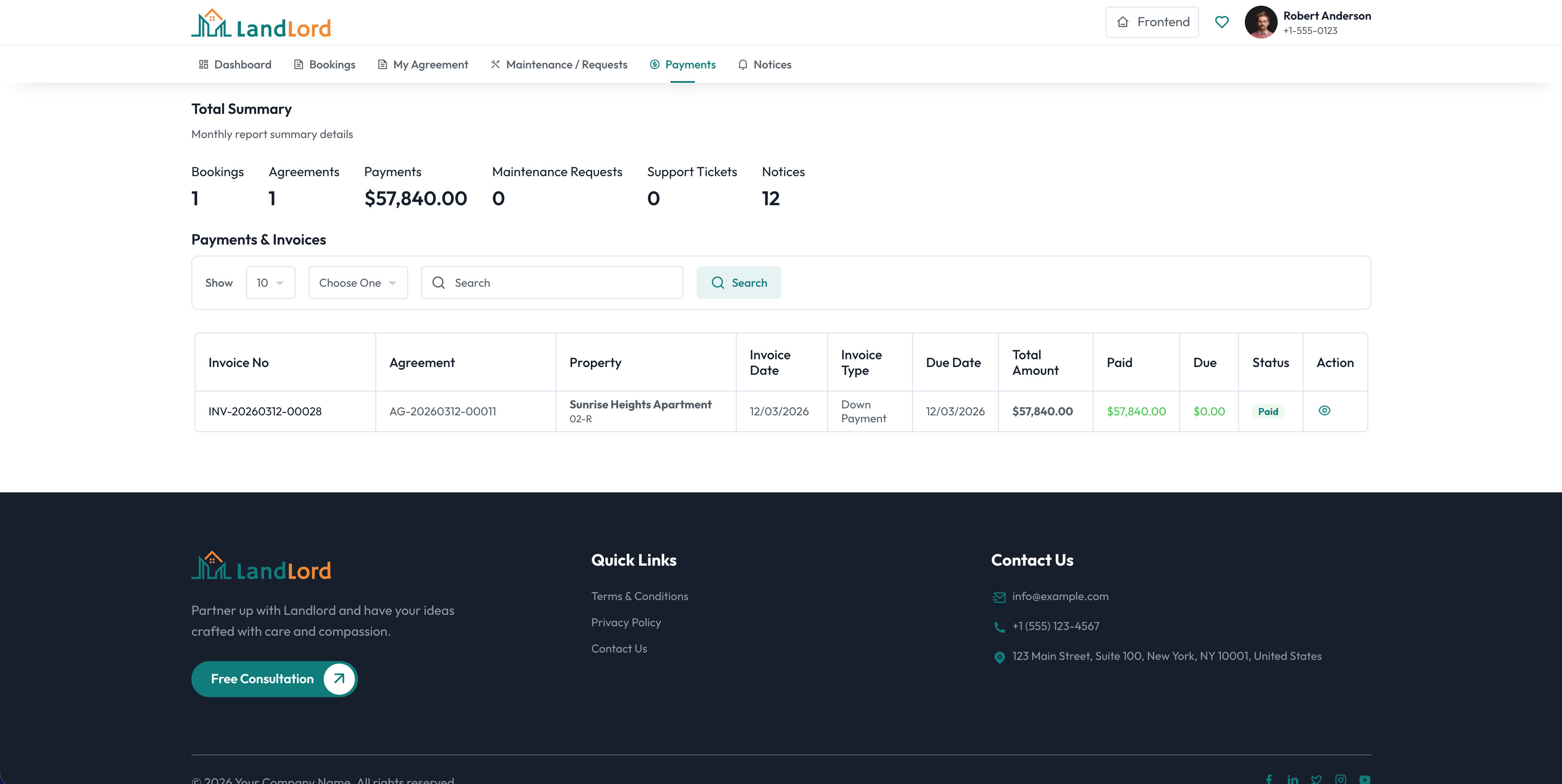
Payment & Invoices screen showing the all payments and invoices in the system.
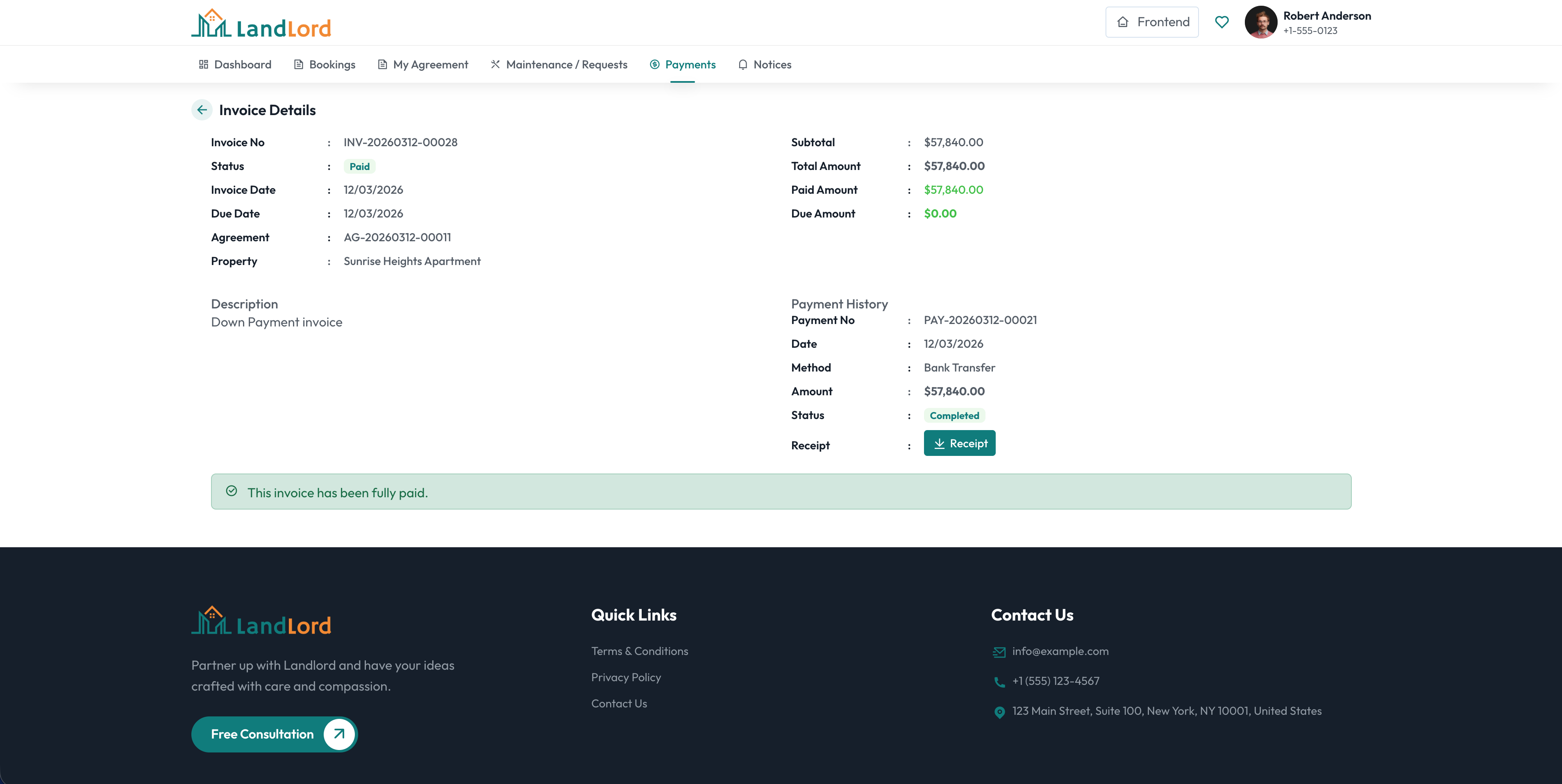
Payment & Invoices details screen showing the details of the payment and invoice.
Maintenance requests
Tenants can submit maintenance requests from the tenant portal. They describe the issue and optionally attach photos. Admin assigns work to maintainers from the admin Maintenance section; tenants can track status and add comments.
Blade Structure
Overview of the HTML markup structure used in the Landlord application. Uses Laravel Blade templates with Bootstrap 5 for a responsive layout.
The Landlord application uses Laravel Blade templates. Key paths and components:
-
Admin layouts:
resources/views/admin/layouts/— app, sidebar, navbar, guest -
Frontend layouts:
resources/views/frontend/layouts/— app, guest, tenant; partials (header, footer, meta_tags) -
Tenant layout:
resources/views/frontend/tenant/layouts/— dashboard layout, sidebar menus -
Form components:
resources/views/components/— form and table components (file upload, inputs, dropdowns, etc.) -
Admin pages:
resources/views/admin/— properties, listings, tenants, bookings, agreements, invoices, payments, maintenance, reports, settings -
Frontend pages:
resources/views/frontend/— listings, CMS pages, tenant dashboard and portal views -
Error pages:
resources/views/errors/— 403, 404, 405, 429, 500
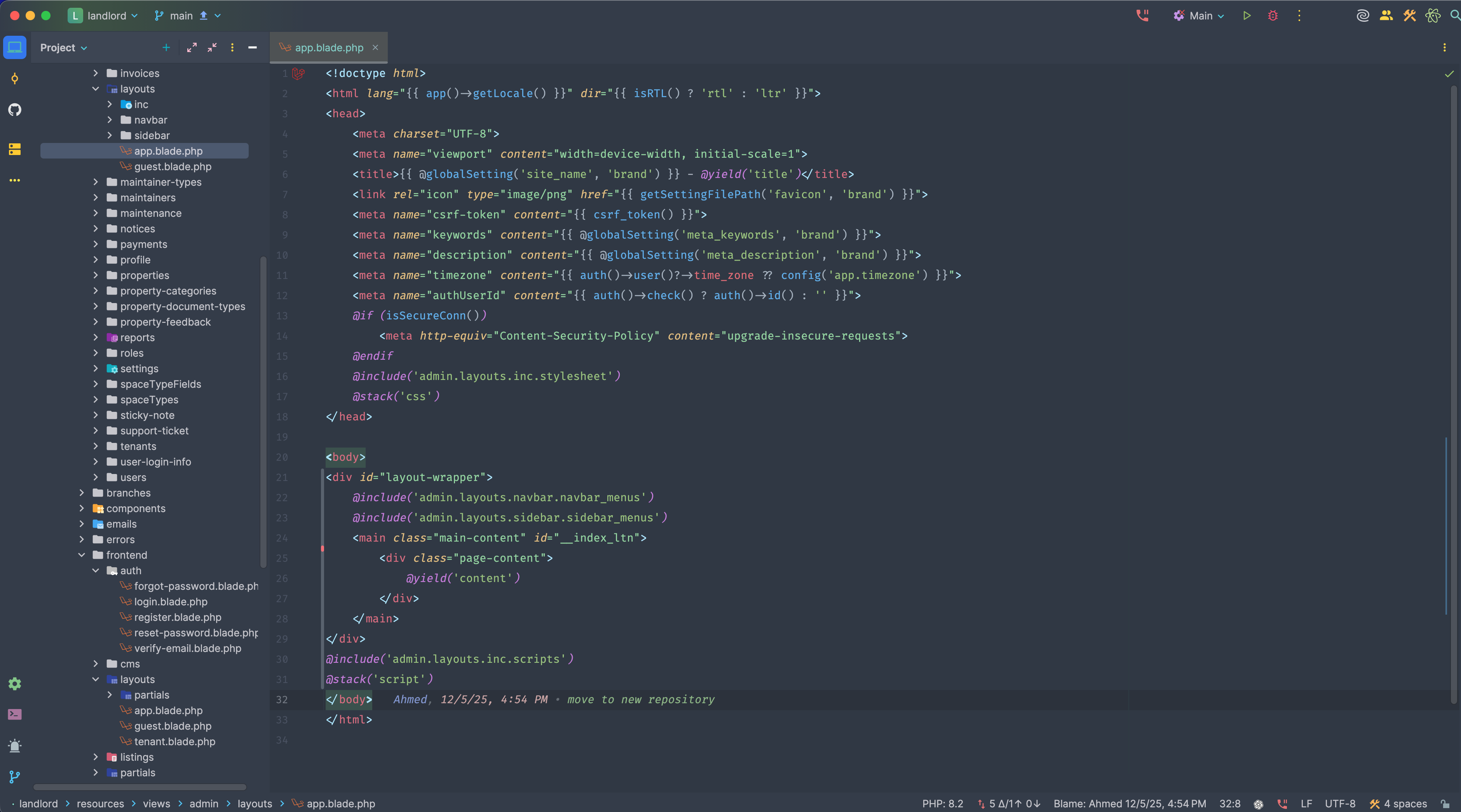
Admin dashboard showing the main layout structure: sidebar, header, and content area.
CSS Structure
Overview of the CSS organization, theming, and styling approach used in the Landlord application.
The Landlord application uses SCSS compiled to CSS. Key paths and structure:
-
Entry point:
public/assets/backend/scss/main-style.scss— main SCSS import -
Global:
scss/global/— _global.scss, _animation.scss, _button.scss, _rtl.scss, _select2.scss, _bootstrap-tooltip-custom.scss -
Layout:
scss/layout/— _header.scss, _sidebar.scss, _footer.scss -
Components:
scss/components/— form, table, modal, breadcrumb styles -
Pages:
scss/pages/— admin and frontend page-specific styles -
Sections:
scss/sections/— _dashboard.scss, _profile.scss, _dashboard-card.scss -
Output:
public/assets/backend/css/— compiled CSS files - Framework: Bootstrap 5 for layout, grid, and base components
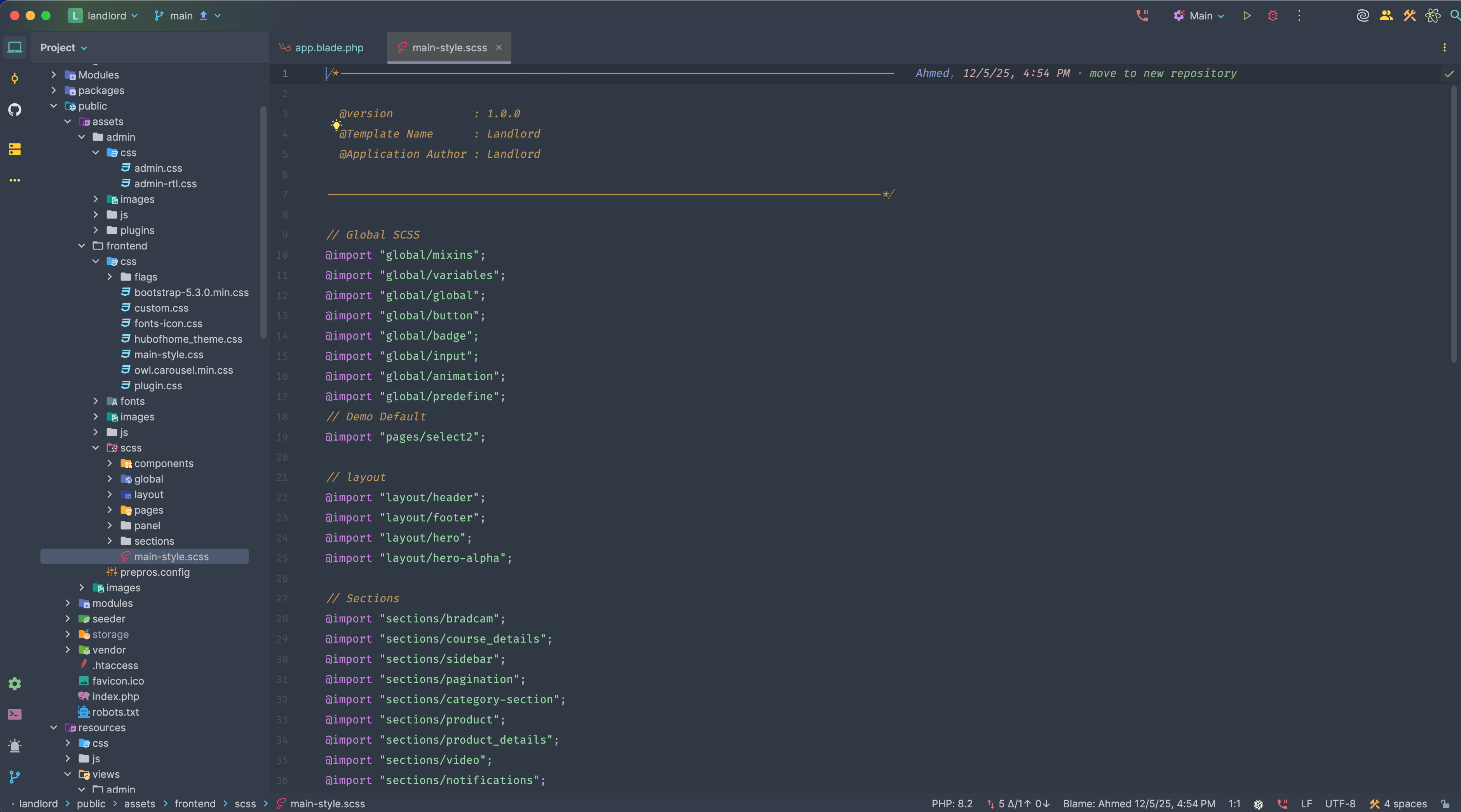
Admin dashboard illustrating the CSS structure: buttons, cards, and styled components.
JS Structure
Overview of the JavaScript structure, modules, and scripts used in the Landlord application.
The Landlord application uses jQuery, Bootstrap JS, and custom scripts. Key paths and structure:
-
Core:
public/assets/backend/js/— jquery-4.0.0.min.js, bootstrap-5.3.8.min.js, main-core.js, main-ui.js, main-forms.js - Custom scripts: custom-core.js, custom-modals.js, custom-settings.js, bulk-action.js, dashboard.js
-
Plugins:
plugins/— plugin.js, lucide-icon.js, LoadingOverlay.js, nprogress, quill.min.js, file-preview file_preview_handler.js -
Chart:
plugins/chart/— apexcharts.js, chart-custom.js - Build: Vite (Laravel vite.config.js) for resources/js/app.js and resources/css/app.css
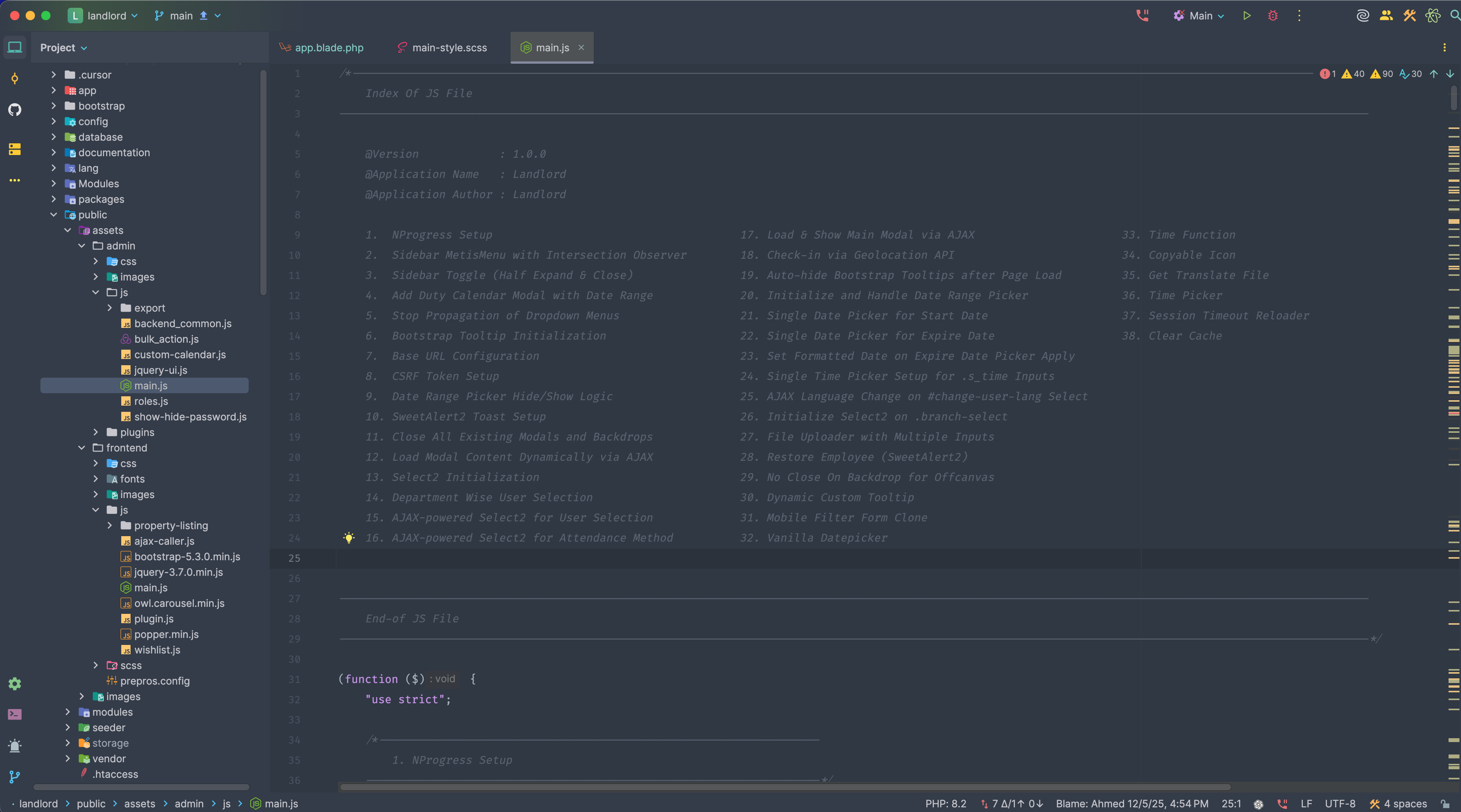
Quick Create modal with charts, filters, and real-time updates powered by the JS structure.
PHP Structure
Overview of the PHP backend structure, controllers, models, and routing used in the Landlord application.
The Landlord application backend is built with Laravel. Key paths and structure:
-
Controllers:
app/Http/Controllers/Admin/— PropertyController, TenantController, BookingController, AgreementController, InvoiceController, PaymentController, MaintenanceController, ReportController, etc.;app/Http/Controllers/Frontend/— listing, CMS, tenant portal -
Models:
app/Models/— Property, PropertySpace, PropertyListing, Booking, Agreement, Invoice, Tenant, Maintenance, User, Role, Branch, and related models -
Repositories:
app/Repositories/— Data access layer for properties, tenants, bookings, agreements, etc. -
Routes:
routes/web.php,routes/admin.php,routes/tenant.php,routes/settings.php— admin prefix /admin, tenant prefix /tenant -
Middleware:
app/Http/Middleware/— auth, permission checks -
Services:
app/Services/— business logic and export services -
Config:
config/— app, database, queue, payment gateways, etc.
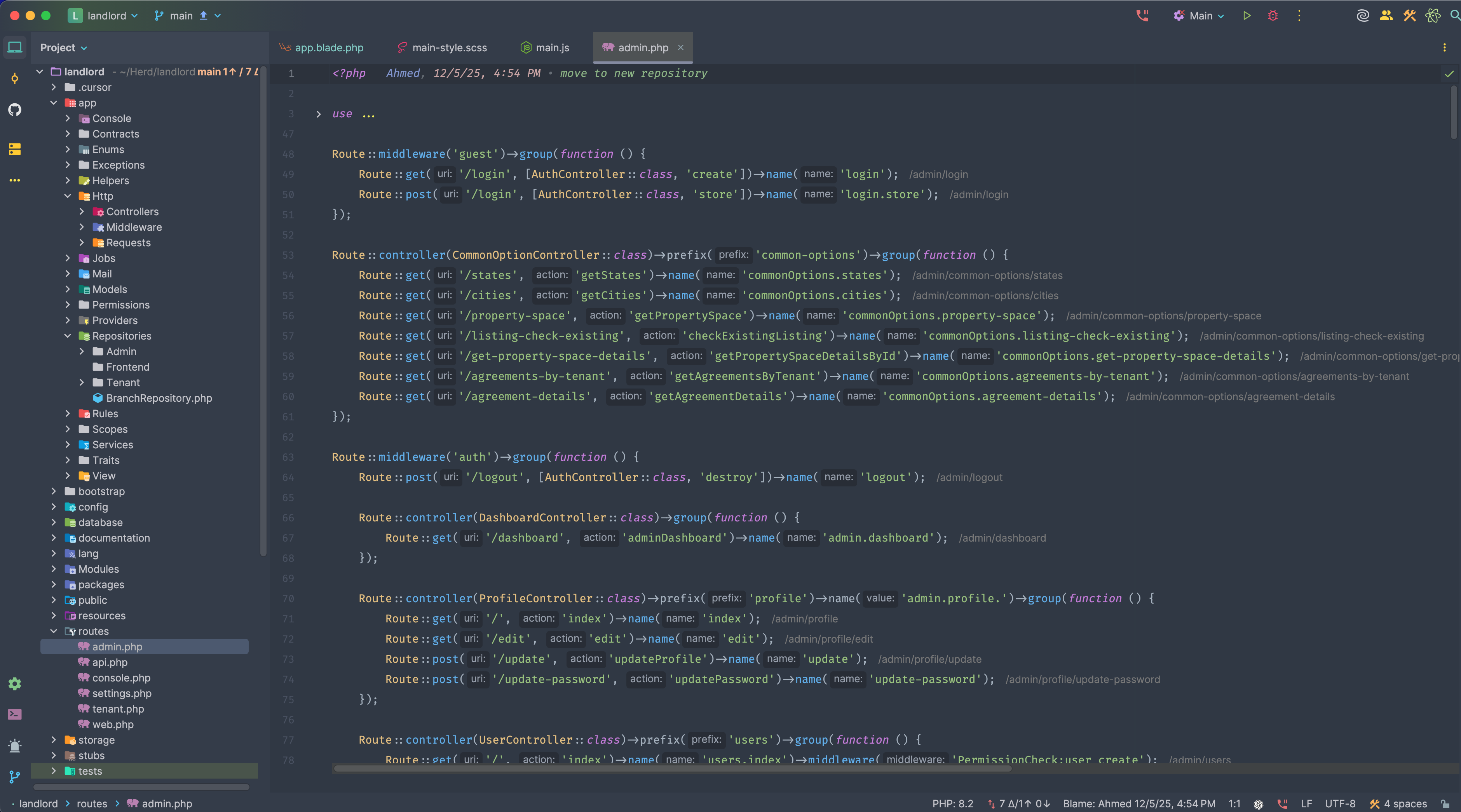
Admin dashboard rendered by Laravel controllers and Blade templates.
Database Structure
Overview of the database schema, tables, and relationships used in the Landlord application.
The Landlord application uses a relational
database (MySQL/MariaDB/SQLite). Migrations are
in database/migrations/. Key
tables:
- Core: properties, property_spaces, property_listings, bookings, agreements, invoices, payments
- Tenants: tenants, tenant_guests
- Maintenance: maintenances, maintenance_issues
- Users & roles: users, roles (admin users and permissions)
- Branches: branches for multi-branch support
- Support & notices: support_tickets, notices
- CMS: pages, menus, sliders, FAQ, footer, contacts
- Settings: general_settings, countries, states, cities, currencies, languages
Plugins
Third-party libraries and plugins used in the Landlord application. Click any name to open the official documentation or live demo.
NProgress
Slim progress bar for Ajax. Used in
main-core.js for page
navigation. Styles from
plugins/nprogress/nprogres.css.
ApexCharts
Charting for dashboard and reports. Loaded
from
plugins/chart/apexcharts.js.
Custom config in
chart-custom.js.
Wow
Reveal animations on scroll. Initialized in
main-core.js via
initializeWOW().
Select2
Enhanced select dropdowns. Used via
class="select2" in forms and
filters.
SweetAlert
Modal dialogs for alerts and confirmations.
Bundled in plugins/plugin.js.
Used in custom-core.js (toasts)
and
bulk-action.js (confirmations).
Loading Overlay
jQuery loading overlays. Loaded from
plugins/loading/LoadingOverlay.js.
Pusher
Real-time WebSockets when enabled. Client and server packages for live updates.
Visit PusherQuill Editor
Rich text editor. Loaded from
plugins/quilleditor/quill.min.js
and quill.snow.css. Used in
form/editor.blade.php.
Laravel Toaster Magic
Toaster notifications for Laravel
applications. Used in
custom-core.js.
Custom File Upload
Custom file upload component at
resources/views/components/form/file_upload.blade.php
with
file_preview_handler.js for
image preview, modal preview, and
validation.
Fonts
Typography used in the Landlord application. Click any font to open Google Fonts or the official source.
Icons
Icon libraries used in the Landlord application. Click any name to open the icon library or documentation.
Images
Image assets and media sources used in the Landlord application.
Key image paths in the project:
-
Backend assets:
public/assets/backend/images/— favicon, no-data placeholder, UI images -
Auth:
public/assets/auth/— login backgrounds -
Modules:
assets/modules/— kiosk (kiosk-bg.png), display (calling-icon.gif), counter images -
User uploads: Stored via
FileManager; paths from
storageAssetPath()
No Results Found
We couldn't find any documentation matching your search.